Special Access & Accommodation
Instructors often receive requests from students, directly or via Accessibility Services (the Blundon Center), for Special Access to a quiz, an assignment, or an exam. Students may require an alternative date for completion, additional time, or more than one attempt on a quiz.
Some students in your course may occasionally need some flexibility in completing assessments (e.g., an alternative due date), while others may require additional time to complete every assessment in the course. Brightspace allows you to meet the needs of those students in two ways:
- by granting Special Access to a specific assessment, or
- by granting an Accommodation for the entire semester.
The chart below summarizes the differences between the two options.
| SPECIAL ACCESS | ACCOMMODATION |
|---|---|
| Available for Quizzes, Assignments, and Surveys | Available for Quizzes only |
| Granted per assessment | Granted per student |
| Applies to one assessment at a time | Applies to all quizzes in a course |
Note
If a student requires extra time or a different Due/Start/End Date for a single assessment in a course, you should grant them Special Access to that assessment.
If a student requires Special Access for every quiz in a course, you can set an Accommodation in Brightspace for that student — a one-step adjustment that will grant special access to all quizzes for the duration of the semester.
Granting Special Access
- Log in to Brightspace and go to your course site.
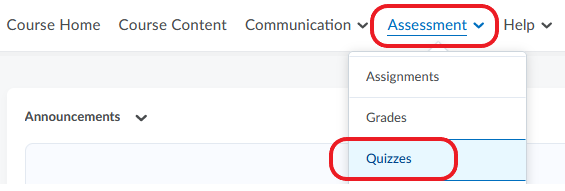
- In the course navbar, click Assessment and select Quizzes from the drop-down menu.
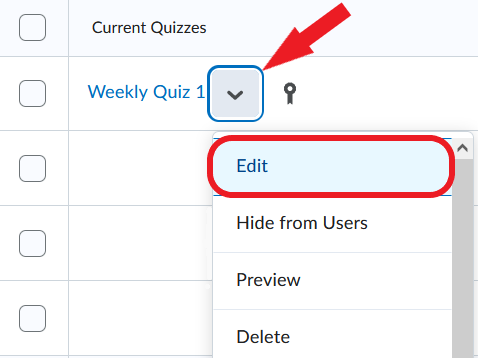
- Locate the quiz to which you want to give Special Access. Click the downward arrow next to it and select Edit.
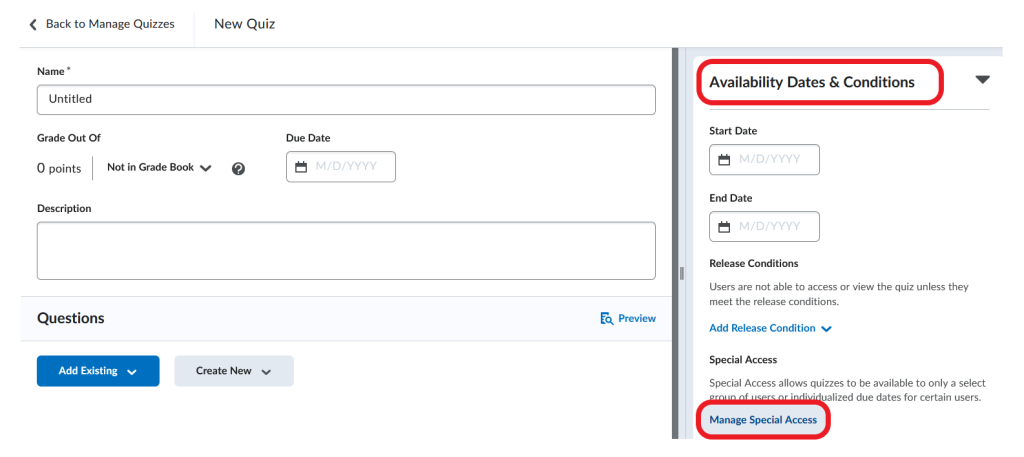
- Expand the Availability Dates & Conditions box on the right, and select Manage Special Access.
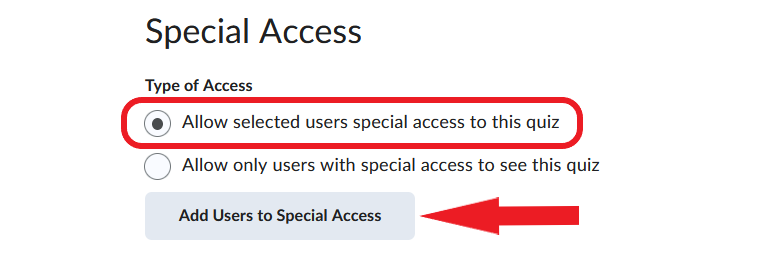
- In the Special Access section, make sure that ‘Allow selected users special access to this quiz’ is selected (it is the default option), and click the Add Users to Special Access button.
- Adjust quiz parameters for Special Access. You can modify the following:
- Due Date
- Start Date
- End Date
- Timing
- Number of attempts allowed
- When you finish making adjustments, scroll down the page and select the student(s) whom you want to grant Special Access.
- Click Save, then Save and Close, and you will return to the Edit Quiz page.
Granting an Accommodation
Some students require extra time for every quiz in a course rather than just for a single assessment. Those students can be granted an Accommodation in Brightspace – a one-time adjustment that automatically applies to all quizzes. To grant an Accommodation, follow the steps below.
- Log in to Brightspace and go to your course site.
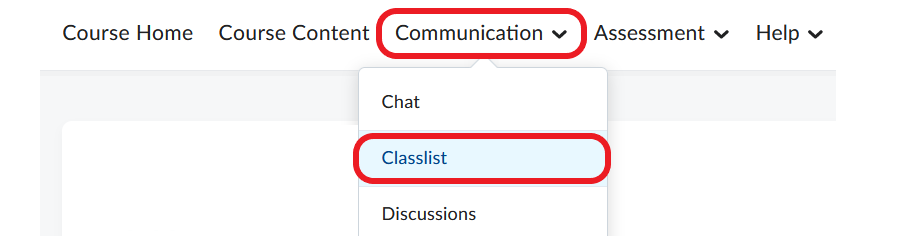
- In the course navbar, click Communication and select Classlist from the dropdown menu.
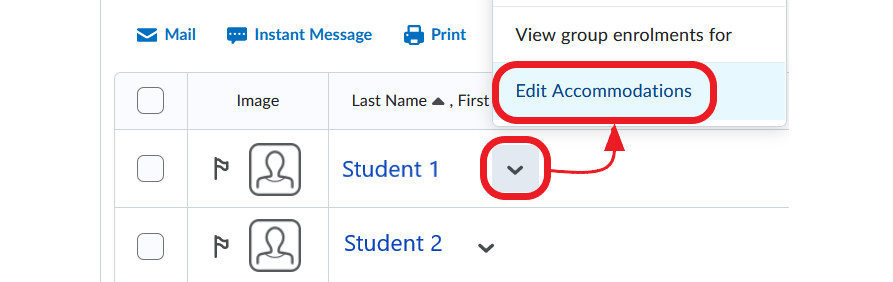
- Locate the name of the student who needs an accommodation.
- Click the downward arrow next the student’s name, and select Edit Accommodations from the menu that opens.
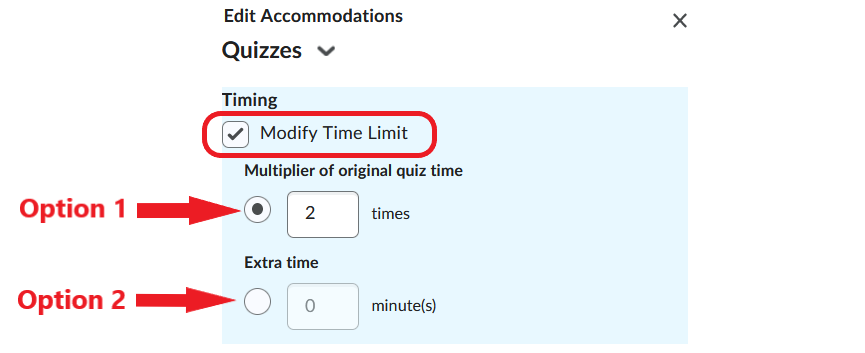
- In the pop-up window, select the Modify Time Limit box and choose one of two options:
- You can multiply the original quiz time by entering the multiplier in the box, or
- You can manually enter the amount of extra time (in minutes) the student needs for each quiz.
Click Save.
Note
The Special Access setting overrides the Accommodations setting. That is, if you give a student an Accommodation AND Special Access to a quiz, the Special Access settings will be applied during the quiz.