Grading in peerScholar
Configuring Grading in peerScholar
A student’s grade for an assignment is calculated using the grading configuration that the instructor set up in peerScholar. There are three main considerations for grading:
- Student participation (in the peer review phases)
- Peer ratings
- Instructor or teaching assistant evaluations
Each of the three main considerations is optional but at least one option must be chosen if a grade will be awarded via peerScholar. Some activities will include participation, peer assessment and ratings, and instructor grades as part of the student’s overall grade. Other assignments may include peer review but the instructor is fully responsible for grading the assignment. There are many scenarios based on the type of assignment, the learning outcomes, and the evaluation scheme.
There are two areas of peerScholar where evaluation of an assignment can be configured. Click on each for details.
1. Build Activity area (Assess and Reflect sections)
Assess phase
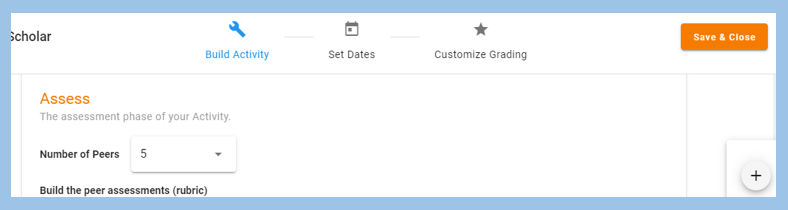
There are several things to consider when setting up the Assess phase of the assignment. Each of these will impact grading.
- Number of peers reviewing and providing feedback
- peerScholar assigns the grade using the mean, median, mode, and drop calculations, so a higher number of peer reviewers may mean a more accurate grade.
- Types of assessment to use
- Feedback provided via inline comments cannot contribute to a student’s grade. Similarly, a comments-type peerScholar assessment cannot contribute to a grade.
- Instructors can create one or more assessments using the assignment requirements and the associated rubric; feedback and ratings provided via these assessments can contribute to a student’s grade.
- Self-assessment
- Students can assess their own work. Turning self-assessment on allows it to contribute to a student’s participation grade.
Note
The assessments are a vehicle for students to use as part of their review and to provide feedback. A numeric grade can be part of this feedback but using the peer-provided grade for the student’s grade is optional – see below.
Reflect phase
There are several things to consider when setting up the Reflect phase of the assignment. Each of these will impact grading.
- Revise and Resubmit
- Turning Revise and Resubmit on allows it to contribute to a student’s participation grade.
- Assess the Feedback
- Turning Assess the Feedback on allows students to assess the feedback that their peer provided to them. Peer ratings can contribute to a student’s grade.
2. Customize Grading area

peerScholar asks “What will be included in the final grade of this activity?” Instructors can customize the grading by considering and determining points for each of the following grading options:
- Instructor/ Teaching Team Evaluations
- Generally, instructors will grade the final version of the assignment
- Instructors can grade a student using one or more assessments that were created using the assignment requirements and the associated rubric
- Peer Ratings
- Generally, peers will review and provide feedback on the draft version of the assignment
- Students can contribute to a peer’s grade for the assignment by:
- Completing the assessment(s) in the Assess phase
- peerScholar will calculate the peer-assigned grade using mean, median, mode, or drop calculations of all peer ratings
- The instructor can customize the points assigned via peer ratings. This value can be 0 if desired
- Answering the question “How useful is this peers assessment and feedback?” in the Reflect phase
- Completing the assessment(s) in the Assess phase
- Student Participation
- Grades are generated automatically for each phase based on the options that the instructor chose and the points assigned.
- Assigning grades for participating in any phase of the peer review process is optional and customizable.
Note
The above three components of grading can be combined in many different ways depending on the learning situation.
Sample grading table
The following table includes considerations for grading a peer review assignment in peerScholar.
| Assessment Consideration | Phase | Assessment Task | Value /Points |
| Instructor/Teaching Team Evaluations Points will be awarded by the instructor or teaching assistant when all phases are complete and closed | Overall | The instructor can use one or more assessments to assess the final version of the assignment. The resulting grade will be an overall grade for the assignment | 10 |
| Create | The instructor can assess the draft version of the assignment. The grade can be assigned during the Create phase | 1 | |
| Assess | The instructor can award point based on the students effort during the Assess phase | 0 | |
| Reflect | The instructor can assess the final version of the assignment to determine if the student reflected on and used the feedback that their peers provided | 1 | |
| Peer Ratings Points can be awarded by peers via completion of assessments during the Assess phase | Create | Not applicable | |
| Assess | Generate assess grades for a student using the mean, median, mode of the assessments that students completed for their peers during the Assess phase | 3 | |
| Reflect | Generate reflect grades using the mean, median, mode of the student ratings of the usefulness of the feedback that a peer provided | 1 | |
| Student Participation Points can be awarded by the system based on how the activity was built | Create | The student completed Entire Create Phase (including additional questions) | 0 |
| The student submitted an Original Composition | 1 | ||
| Assess | The student completed the Entire Assess Phase (including additional questions) | 0 | |
| The student submitted Feedback | 1 | ||
| The student submitted Self Assessments in Assess phase | 1 | ||
| Reflect | The student completed the Entire Reflect Phase (including additional questions) | 0 | |
| The student assessed Peer Feedback | 0 | ||
| The student submitted a Revised Composition | 1 | ||
| Total: | 20 |
The following image shows the grading setup, based on the table above, and a summary of the grades.
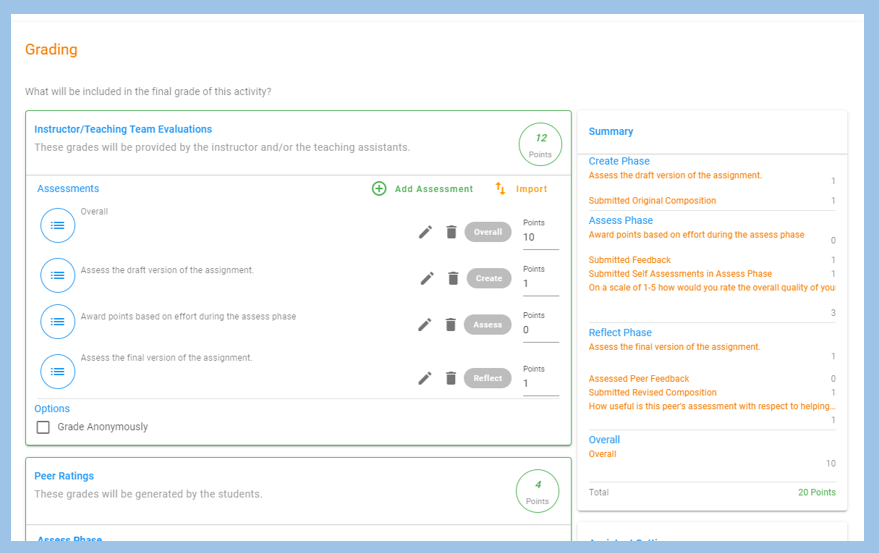
Grading in peerScholar
Depending on how the grading was configured, the grading area of peerScholar will allow instructors to do the following:
- View the feedback that each peer provided on the student’s work
- View the original composition, revised composition, and composition changes for each student
- Grade the final version of each student’s assignment
- Grade all students according to:
- Peer Ratings configuration
- Student Participation configuration
Steps for Grading

Step one: Open the Student Grading area – there are two ways of doing this
- Click Student Progress & Grading and click the arrow under grades for the student whose grade you would like to calculate
- From the Overview page, click Grade Now
Step two: Select a student to grade
- If you use Grade Now, the grading area will open on the first student in the list
- You can choose a specific student to grade via Student Progress & Grading
- Choose a different student in the grading area by clicking the list icon in the orange bar or by using the forward and back arrows
Step three: Evaluate and provide a grade using the Instructor Grades panel
- Using the assessment(s) provided, grade the final version of each student’s assignment
- Consider the following information as part of your evaluation:
- Peer feedback
- Improvements/changes made to the original composition
- Click Save
Step four: When all students have been evaluated, complete the Peer Rating and Student Participation grades
- Click the vertical ellipse, then Grade All and confirm by clicking “okay”. All students will be graded according to Peer Ratings & Participation
- The Overview page will show the number of students that have been graded
- When complete, change the star icon in the grading box of the Overview page to make the grades visible to students
Viewing Student Grades
There are several ways to view and export student grades in peerScholar:
- Click Gradebook on the left-side navigation – student grades will be displayed for all course activities
- Click Gradebook and then click Download CSV
- Click Grade Now and then click the vertical ellipse in the Student Grading. Click Grading Details to download a spreadsheet of the student grades
Transferring Grades
There are several ways to transfer grades from peerScholar to Brightspace where students can see their grades.
- Manually (useful for fairly small classes)
- Open the Gradebook in peerScholar. All of the student grades for each activity will be displayed here. Open Grades in Brightspace and manually enter the grade that each student achieved.
- NOTE: You can also enter the grades manually using a spreadsheet of the grades (see #2 and #3 below)
- Export and Import Using a CSV file (useful for fairly large classes)
- Open the Gradebook in peerScholar and click Download CSV. Follow the instructions for importing grades in Brightspace.
- Sync Grades Between peerScholar and Brightspace
- Open the Gradebook in peerScholar and click Sync Grades. peerScholar will create a grade item in Brightspace for the assignment and will populate the grade item.
Note
A Cautionary Note About Syncing Grades
Clicking Sync Grades in the peerScholar Gradebook will create and populate a peerScholar item in the Brightspace Grades. This is only useful for a course with ONE peerScholar activity. Instructors with MULTIPLE peerScholar activities in their course should update their Grades manually or by importing the grades via a CSV file.