Grading Quizzes
Except for Written Response (WR) questions, all question types in Brightspace quizzes can be auto-graded. However, in some cases, manual grading is either recommended or required. This applies to the following question types:
- Written Response (WR)
When students submit a quiz with a WR question in it, their score for the question is zero. Instructors need to manually grade WR questions for each student. - Short Answer (SA), Multi-Short Answer (MSA), and Fill-in-the-Blank (FIB) questions
These question types will be auto-graded, but they should be reviewed by the instructor as they pose a problem for auto-grading. If the text that a student entered for their answer is not identical to the correct answer that the instructor entered, the student will be graded as incorrect, even though their answer may be correct. Instructors should review the answers for each student and edit the score as needed.
Steps to grade a quiz:
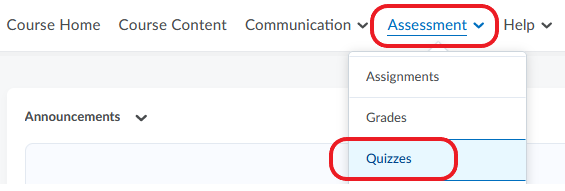
- In your course, click Assessment and select Quizzes from the menu.
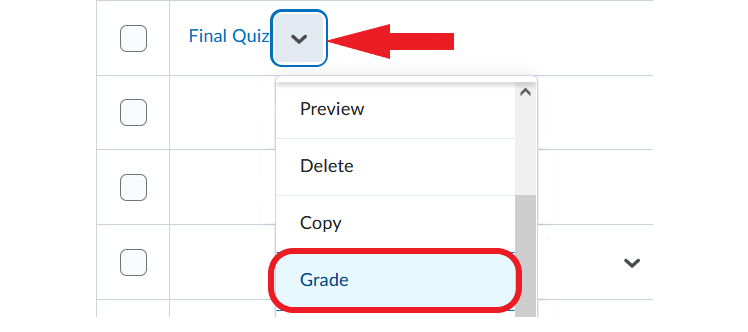
- Locate the quiz you want to grade. Click the dropdown arrow next to it and click Grade.
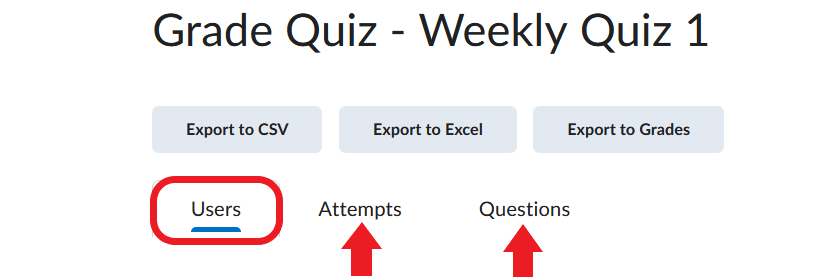
- The ‘Grade Quiz’ page will open on the Users tab, which is the default option. Grading by user means that you will grade all answers for one student before moving on to the next student. Please note that you also have the option to grade by Attempts or by Questions.
- Select the quiz attempt you want to evaluate.
- Review each question and enter or edit the score and respective feedback for each. Pay particular attention to questions that required students to enter text.
- When complete, click Save.
Video Instructions
The following short tutorial outlines how to grade a quiz manually.
Quizzes – Manually Grade a Quiz
Publishing Quiz Grades and Exporting to Grade Book
Publishing and exporting quiz scores to the grade book will happen automatically if you selected the appropriate settings when creating a quiz (‘Automatically Publish Evaluation‘ and ‘Synchronize to Grade Book‘ are available under the Assessment tab in the classic interface, and in the Evaluation & Feedback widget in the new interface). For details, please ref to the page on configuring quiz settings) That is, students will be able to view their own score as soon as they submit their quiz attempt.
Note
Remember that only the auto-gradable portion of the quiz will be scored and published. This excludes Written Response questions, which are always assigned a score of zero until graded manually. Additionally, while Short Answer (SA), Multi-Short Answer (MSA), and Fill-in-the-Blank (FIB) questions are auto-graded, it is recommended that they be reviewed by the instructor.
If you opted not to publish the grades automatically, follow the process outlined below.
1. Publishing Quiz Grades Manually
After you have finished grading quiz submissions for all your students, you are ready to publish the scores, i.e. make them visible to students in the Quizzes tool. Publishing the quiz scores is also a necessary step before you can transfer the scores to the Brightspace grade book.
To publish quiz grades manually, follow the steps below.
- In your course, click Assessment and select Quizzes from the menu.
- Locate the quiz you have graded or want to grade. Click the downward arrow next to it and select Grade.
- If applicable, grade students’ quiz submissions now.
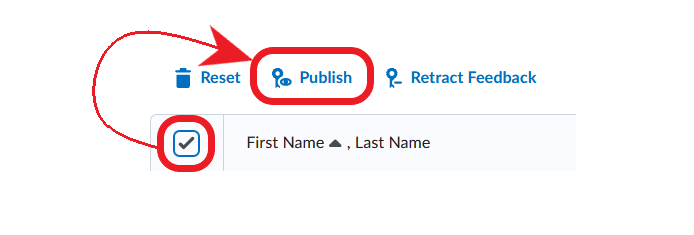
- Next, select the quiz grades you want to publish, or select them all (as in the example below). Then click Publish.
- Students will now be able to view their own quiz scores.
2. Exporting Quiz Grades to the Grade Book
Once the quiz grades have been published, they can be sent to the Brightspace grade book.
- Publish the quiz grades as outlined in step 1 above.
- On the ‘Grade Quiz’ page, select all the quiz attempts you want to export to the grade book, or select them all.
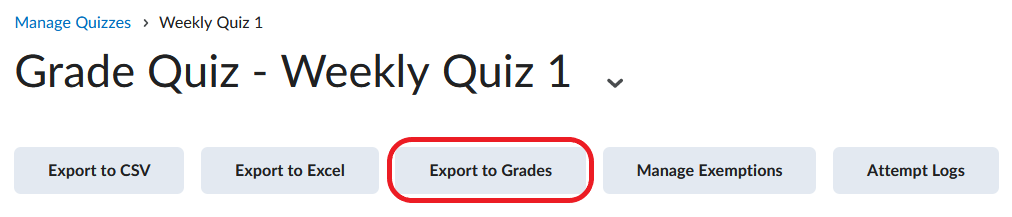
- Click Export to Grades.
Note
The ‘Export to Grades‘ option will only be available if the quiz is associated with a corresponding grade book item. For information on how to link a quiz to a grade book item, please go to this page and refer to the information under the ‘Grade Out of & Link to the Grade Book‘.
Video Instructions
The video below illustrates how to transfer quiz grades to the grade book.
Quizzes – Transfer Quiz Grades to Your Grade Book