Assignments
The Assignments tool in Brightspace is a place where instructors can create digital folders for students to submit their work (e.g., assignments or exams), and instructors can then review the submissions, provide feedback, and assign grades – all within Brightspace.
Benefits of Using Assignments
- Enhanced organization: Student submissions are stored in a secure environment; submission details (date, time) are clearly identified.
- Improved Communication: Clear expectations and feedback loops between students and instructors.
- Multiple file types supported: Instructors can restrict or expand the file types allowed for submission.
- Efficient grading: Built-in annotation tools and the ability to add rubrics make evaluation faster and more consistent.
- Individual and group submission options: Group assignments allow for a single submission per group, and grades and feedback are sent to all group members.
- Integration with grade book: Grades can be automatically transferred to the grade book.
Creating Assignment Folders
To create assignment folders, follow the steps below.
- Log in to your course in Brightspace.
- On your course homepage, go to the navbar and click Assessment.
- In the dropdown menu, select Assignments.
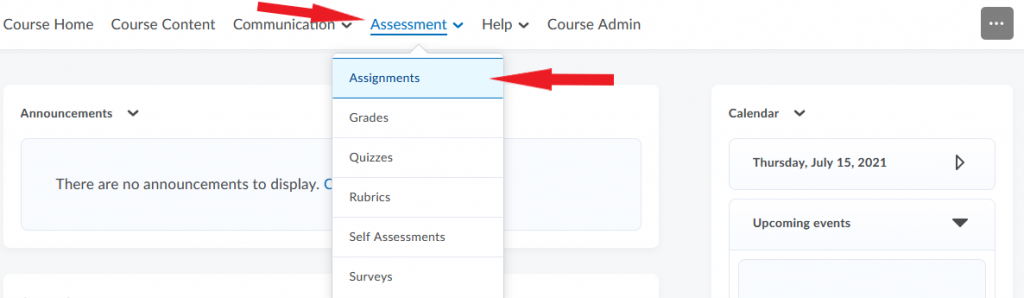
- At this point you have two options:
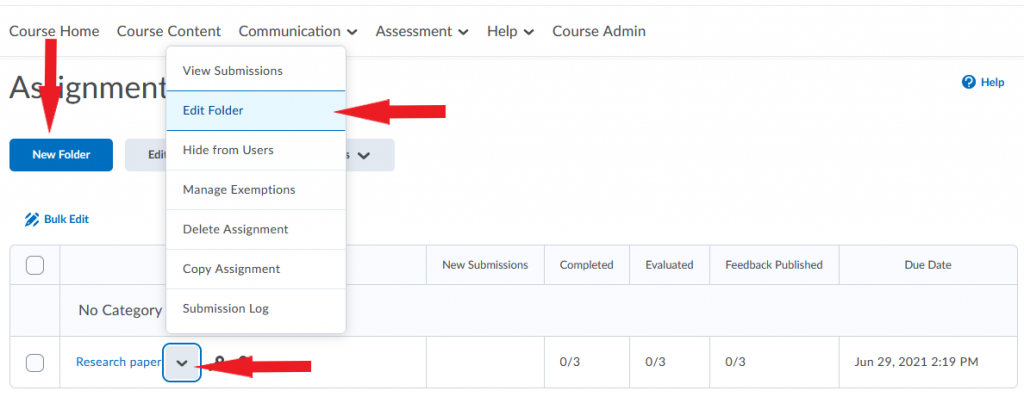
- To create a new assignment, click New Folder.
- To edit an existing assignment, locate the folder for the assignment on the page. Click the down arrow next to it and select Edit Folder (alternatively, you can click the folder’s name, and then click Edit Folder on the new page).
Assignment Settings
The assignment interface has 3 areas: the main area of the screen for assignment information, saving controls at the bottom, and 3 expandable widgets to the right.
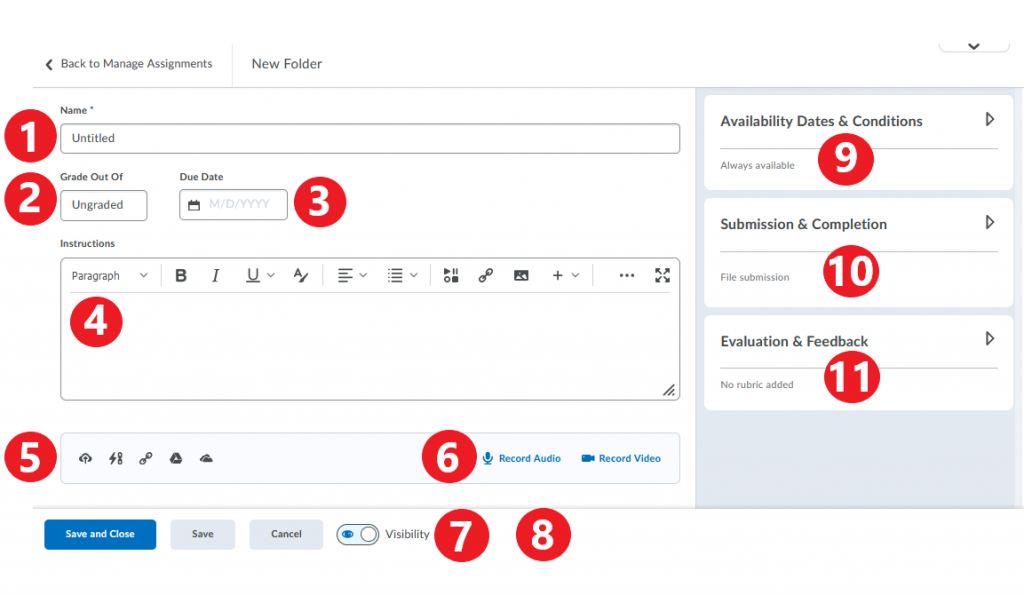
Click on the options below for more details.
1. Assignment title
2. Grading options
These options can be accessed in area “2” identified in the Layout image above. The default grading option for assignments is ‘Ungraded’. You can choose to leave it ungraded, or you can assign a grade to it.
In order to assign a grade to an assignment, start by entering the point value for the assignment in the Grade Out Of box (notice that doing so brings up more grading options to the right).
When choosing your options, we suggest that you look at the 4 scenarios below regarding your Grades tool (also known as the grade book) and identify the one that applies to you.
- Your grade book is not yet set up. You want to create an assignment and a grade item for it in the grade book, and link the two:
- Enter the point value for the assignment in the Grade Out Of box.
- Do not change the default grade setting – In Gradebook. This setting indicates that your assignment will be added to the grade book once you click Save.
- Click Save. You have just created an assignment, a grade item with the same name (you can change the name of the grade item in the grade book if you wish), and a link between the two.
- Your grade book is not yet set up. You want to create an assignment, but you do NOT want to create a grade item for it in the grade book.
- Enter the point value for the assignment in the Grade Out Of box.
- Click In Gradebook to open a dropdown menu and select Not in Gradebook.
- Click Save. You have just created an assignment but no new grade item in the grade book.
- Your grade book is already set up. You want to create an assignment and link it to an existing grade bookitem.
- Enter the point value for the assignment in the Grade Out Of box.
- Click In Gradebook to open a dropdown menu, and select Edit or Link to Existing.
- In the pop-up window, select Link to an existing grade item radio button. Choose the item to which you want to link the assignment and click OK.
- On the assignment page, click Save. You have just created an assignment, and linked it to an existing item in the grade book.
- Your grade book is already set up. You want to create an assignment but you do NOT want to link it to an existing item in the grade book.
- Enter the point value for the assignment in the Grade Out Of box.
- Click In Gradebook to open a dropdown menu, and select Not In Gradebook.
- Click Save. You have created an assignment, but did not link it to the grade book.
NOTE: If you remove a link between an assignment and a grade item and then link them again, the original link will not be restored. Instead, a brand new grade item will be created in the grade book and the assignment will be linked to that new item. In this situation, you should check your grade book to be sure it correctly reflects your grading scheme.
3. Due date
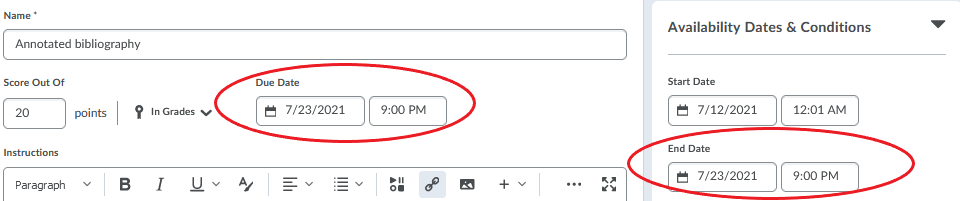
Select Due Date for the assignment so that students can see it in the Brightspace Calendar.
Note
If you set a Due Date, students will continue to be able to submit their assignments after that date, but those assignments will be flagged as late. If you want to prevent student from submitting after the duedate, you must set an End Date under Availability Dates on the right of the assignment page.
4. Instructions
5. Attachment options
You can supplement written instructions for an assignment with one or more attachments. Hover your cursor over the attachment options to see what each one attaches. The options include:
- files from OneDrive
- files from your computer
- links to existing activities in the course
- links to external websites
- files from a Google Drive

6. Recording options
You can supplement written instructions for an assignment with an audio or video recording. Options include:
- Record up to 30 minutes of video in Brightspace OR uploading a clip from your computer.
- Recording up to 1.5 minutes of audio within Brightspace OR uploading an audio clip from your computer.
7. Save & Close, Save, and Cancel buttons
8. Visibility toggle
A toggle to control the visibility of the assignment (note that the default setting is ‘Visible’).
9. Availability dates and conditions
In this widget you can set:
- Start date – the day and time the assignment folder becomes available for students to begin submitting their work.
- End date – the day and time the assignment folder becomes unavailable and students can no longer make submissions. Note: The End Date will be visible in the Brightspace calendar but not the Start Date.
- Special Access – if one or more students in your course requires an alternate submission date for the assignment.
- Release Conditions
10. Submission & completion
In this widget you can:
- add an email address if you want to be notified when a new submission is made.
- set the assignment to be individual or group-based
- add the assignment to a category if applicable
- choose submission type (File, Text, On Paper, or Observed in Person)
- decide on the number of files allowed per submission (1 or more)
- determine the file types/extensions you want students to upload
- decide whether to keep all or only one submission in the folder
11. Evaluation & feedback
In this widget you can:
- Create a rubric or attach an existing one
- Align your assignment with learning objectives
- Toggle ON and OFF the Brightspace annotation tool (this tool allows you to digitally mark students’ submissions)
- Choose to make marking anonymous if you wish.
NOTE: Selecting anonymous marking cannot be undone once you click Save. if you create an assignment with anonymous marking enabled but later change your mind, you will need to create a new assignment with this option disabled.
Video Instructions
Create an Assignment
Grading Assignments
The Assignments tool allows instructors to receive students’ submissions and keep them organized. It also provides space and tools for grading assignments and providing feedback to students. Instructors can either annotate and grade assignments within Brightspace using the tools available on the assignment evaluation page, or they can download submission files to their own computer, annotate them using a software/program of choice, and upload them back to Brightspace. Click the items below for details on each method.
Method 1: Grade assignments online within Brightspace
It is recommended that students’ submissions be graded within the Assignments tool in Brightspace. The assignment evaluation page offers a range of tools available for grading, including multiple annotation tools (e.g., highlighter, shapes, comment boxes) as well as various ways to provide feedback to students (rubrics; written, audio, or video feedback; file upload), all within a single window on your screen. Once the assignment grades are published, students can also easily access the annotations and feedback saved by the instructor.
- On your course homepage, go to the navbar and click Assessment.
- Select Assignments from the dropdown menu.
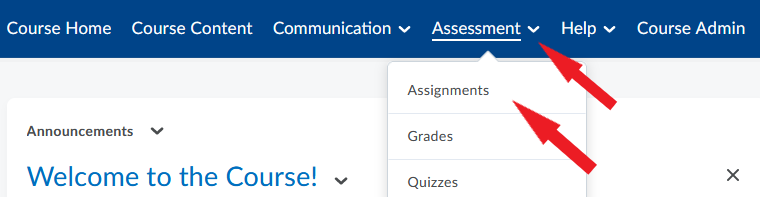
- On the Assignments Folders page that opens, click the folder you want to grade.
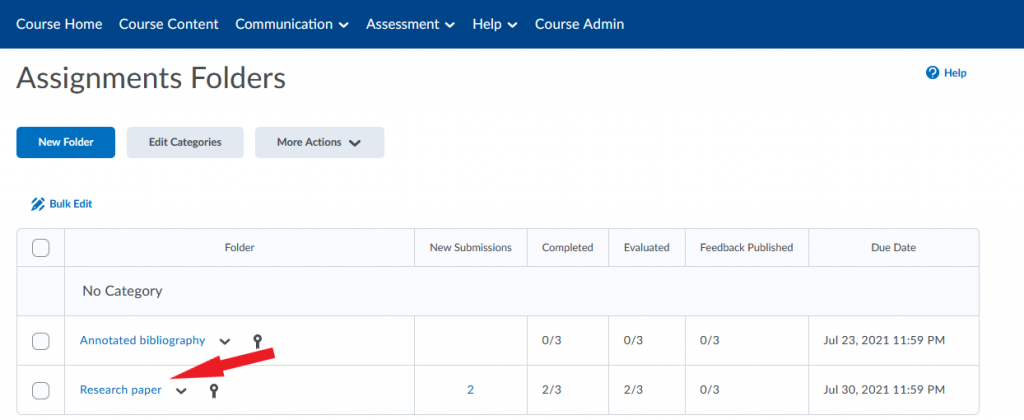
- On the Folder Submissions page for the selected assignment, locate the student whose submission you want to grade and click:
- the student’s name, or
- ‘Evaluate‘ to the right of their name, or
- the file (or one of the files) the student has uploaded as their submission.

- The assignment evaluation page will open. At the top on the document viewer, you will find various tools (page display options, zooming etc.). Click the icon for Annotations.

- Annotation tools will now open. You can choose between Pen, Note, Text, and Line. Clicking on each tool will give you access to additional options such as pen/highlighter color, font type and size, and many others. To close annotation tools and return to all tools, click the arrow on the left.

- Evaluate and annotate the assignment submission.
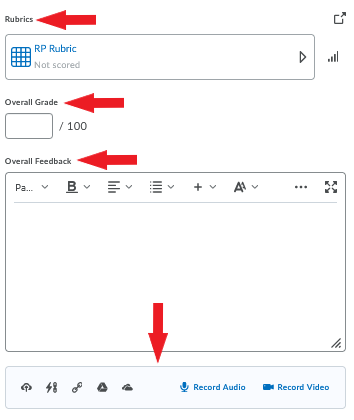
- If the assignment has a rubric associated with it, a Rubrics section will appear to the right. Click to expand it. You can assign points to the evaluation criteria and add feedback for each criterion if you wish.
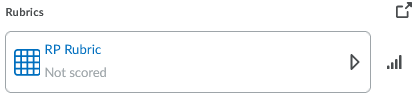
- Enter the Overall Grade for the assignment in the box. NOTE: If you are using a Rubric, the overall grade will autofill based on the scores you assigned to each criterion in the rubric. You can override the autofill grade by manually entering a score in the Overall Grade box if you wish.
- Optionally, you can provide additional feedback by:
- typing comments in the Overall Feedback box
- uploading a file (e.g., a marked up version of the student’s submission) or adding a link, and
- recording audio or video feedback.
- Click Save Draft at the bottom of the page, and proceed to the next submission by clicking the arrow in the bottom-right corner of the evaluation window.

Note
It is recommend that you not click Publish at this point. Publishing the grade at this stage would make the individual student’s grade visible in the Brightspace grade book. We suggest that you finish grading all students’ assignment submissions first, and then transfer all grades to the grade book at the same time (see below).
- When you finish grading all students’ assignment submissions, return to the Folder Submissions page for the assignment (Assessment > Assignments > ‘Assignment Folder‘).
- In the menu at the top of the page, select Publish All Feedback. If the assignment is linked to a grade book item, all students’ grades will now be transferred to the Brightspace grade book.

Method 2: Grade assignments on your computer
If you prefer to grade students’ assignment submissions on your own computer using a familiar software or program (e.g., Word or PDF), the option is available to you. The process involves downloading submission files to your computer, marking them, and then uploading them back to Brightspace. The download-grade-upload process can be completed in two different ways.
Download submissions one-by-one
- On your course homepage, go to the navbar and click Assessment.
- Select Assignments from the dropdown menu.
- On the Assignments Folders page that opens, click the folder you want to grade.
- On the Folder Submissions page for the selected assignment, click the first submission you want to evaluate.
- You will now be taken to the evaluation window. In that window, click the download icon
 to save the submitted file to your computer.
 - Grade and annotate the submission on your computer.
- Return to Brightspace. Go to Assessment > Assignments > ‘Assignment Folder‘.
- Click the name of the student whose assignment you just evaluated. The assignment evaluation window for that student will open.
- In the bottom right corner of the page, click the File Upload icon. Locate the student’s assignment submission with your feedback on your computer, and upload it to Brightspace. (You also have the option of attaching files from Google Drive or OneDrive.)

- After you upload the file, enter the grade for the assignment in the Overall Grade box. You can also add audio or video feedback if you wish.
- Click Save Draft at the bottom of the page, and proceed to the next submission by clicking the arrow in the bottom-right corner of the evaluation window.
Note
It is recommend that you not click Publish at this point. Publishing the grade at this stage would send the individual student’s grade to the Brightspace grade book for immediate viewing. It is recommended that instructors finish grading all students’ assignment submissions first, and then transfer all grades to the grade book at the same time (see below).
- Complete the steps above for each student in the course.
- When you finish uploading feedback files and entering grades for all students, go to the Folder Submissions page for the assignment (Assessment > Assignments > ‘Assignment Folder‘).
- In the menu at the top of the page, select Publish All Feedback. If your assignment is linked to a grade book item, all students’ grades will now be sent to the Brightspace grade book.

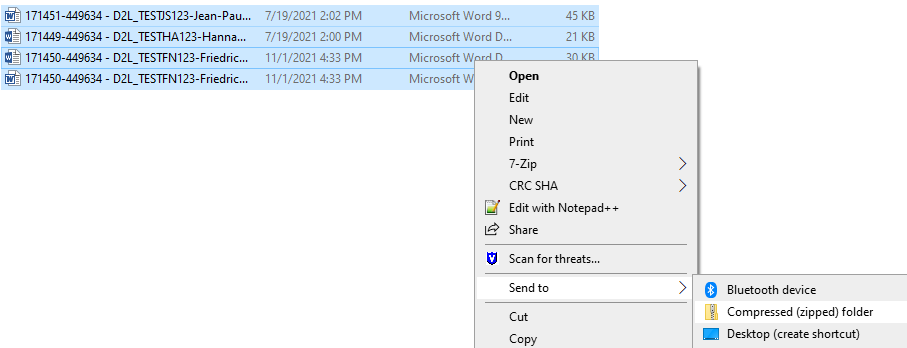
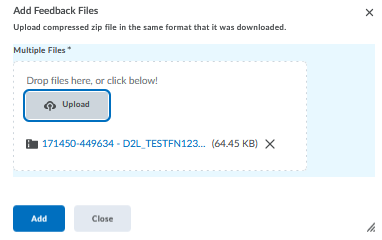
Download submissions in bulk
1.
2.
3.
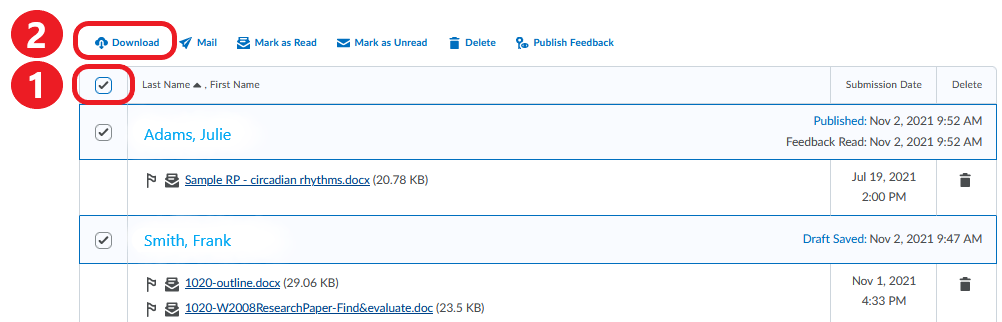
Select All & Download
4.

5.
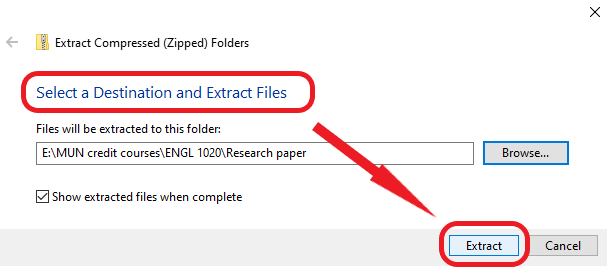
Note
It is recommended that you not change the file names from the original versions you imported from Brightspace. The file names contain important information that enables Brightspace to ‘match’ each file with the correct student during the process of uploading files back to Brightspace.
6.
7.

8.
9.
Note
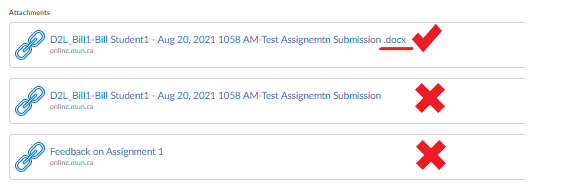
Check if the attachment contains a file extension at the end of its name. If not, the student will not be able to view the attached file. If the file extension is missing, please review the steps above or contact CITL Client Support.
10.
Note
It is recommend that you not click Publish at this point. Publishing the grade at this stage would send the individual student’s grade to the Brightspace grade book for immediate viewing. It is recommended that instructors finish grading all students’ assignment submissions first, and then transfer all grades to the grade book at the same time (see steps 10-11 below).

Video Instructions
The following video illustrates the process of grading submissions within Brightspace.
Assignments – Grade Submissions in Assignments
Grading assignment submissions on your local computer
Assignments – Grade Assignment Submissions Offline
If you have questions please contact the CITL Support Centre for any Brightspace help.