Course Setup Kit
Every course listed in Memorial’s Banner system has a Brightspace site automatically created for it, which provides instructors with a platform to support their course delivery.
To assist instructors with the initial setup of their course site, CITL has created a Brightspace Course Setup Kit—a course design template that allows for customization to meet instructors’ needs.
Along with links to technical and design resources, the Course Setup Kit includes templates for:
- a ‘Getting Started’ section of the course,
- a sample syllabus,
- content modules and pages.
Note
Instructors can refer to this ‘Quick Start Guide to Brightspace‘ (PDF) for practical suggestions on designing a course site. For in-depth information on effective course design, please refer to our Instructional Resources site.
Installing the Kit
You can add the Brightspace Course Setup Kit to your course site in one of two ways:
- Contact CITL Support Centre and request to have the kit added to your course, or
- Add the Setup Kit to your course site yourself.
If you choose the do-it-yourself approach, you can follow the instructions below (click each link to expand and view details).
Step 1: Download the Setup Kit to your computer
- Right-click this link: Course Setup Kit, and select Save Link As from the dropdown menu.
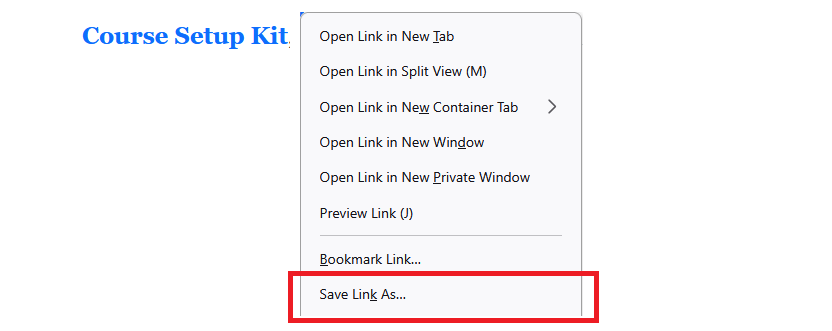
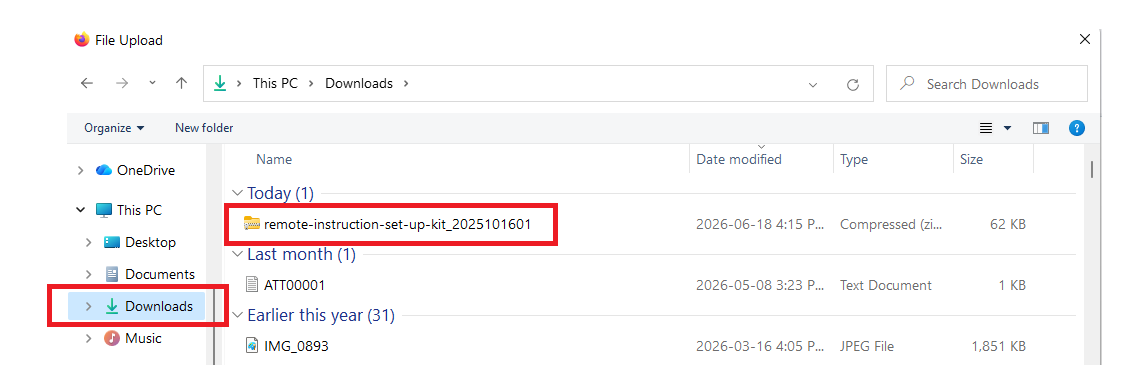
- You will be prompted to select a location on your computer where the file will be saved. Take note of what that location is. (In the example below, the file is being saved in the ‘Downloads’ folder).
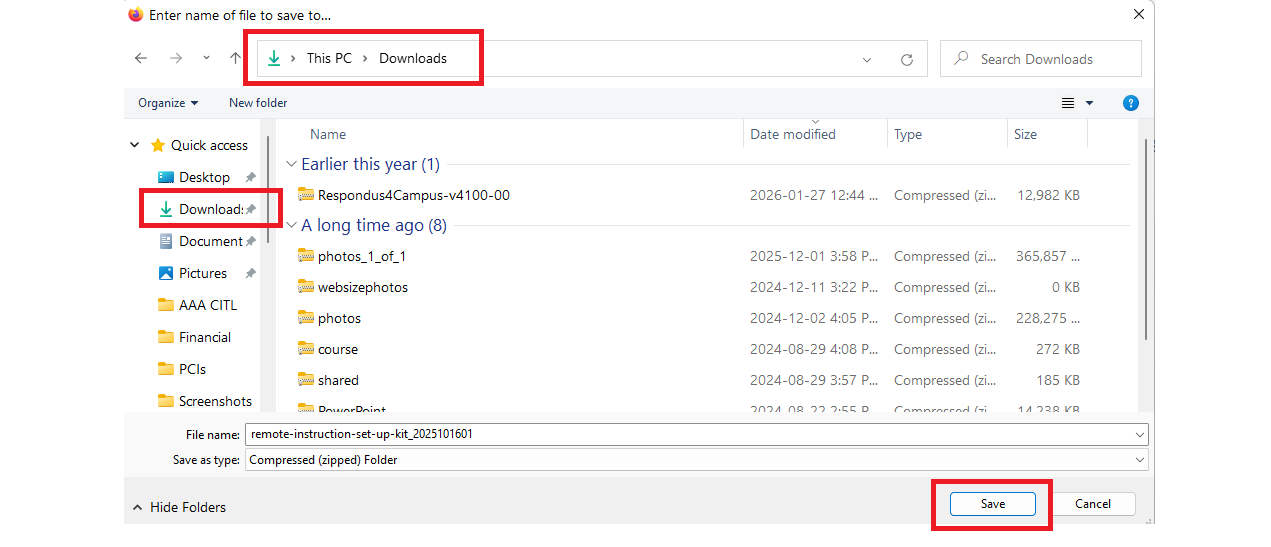
- Click Save at the bottom of the window.
Step 2: Import the Setup Kit to Brightspace
- Log in to Brightspace, and go to the course where you want to add the Setup Kit.
- Click Course Admin in the navigation bar.

- Click Import/Export/Copy Components.
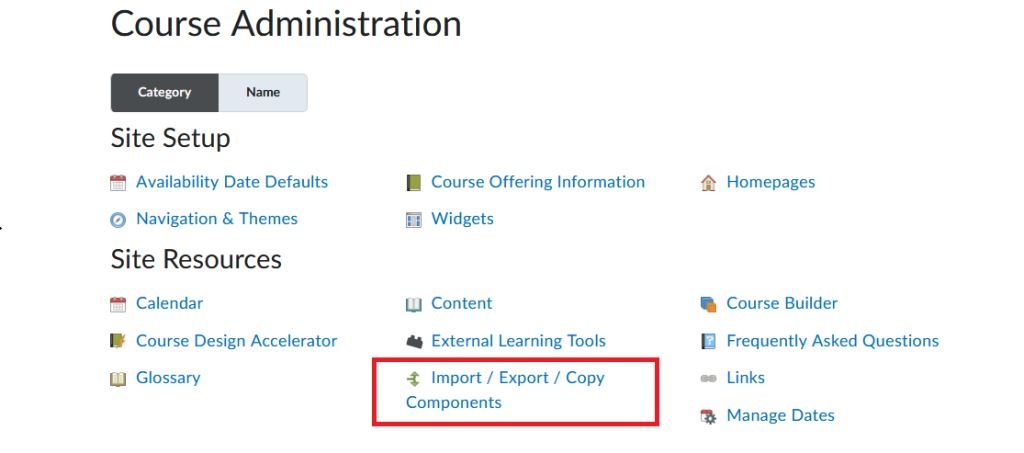
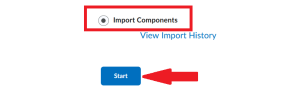
- On the next page, select Import Components and click Start.
- In the ‘Import Course Package’ window that opens click Upload.
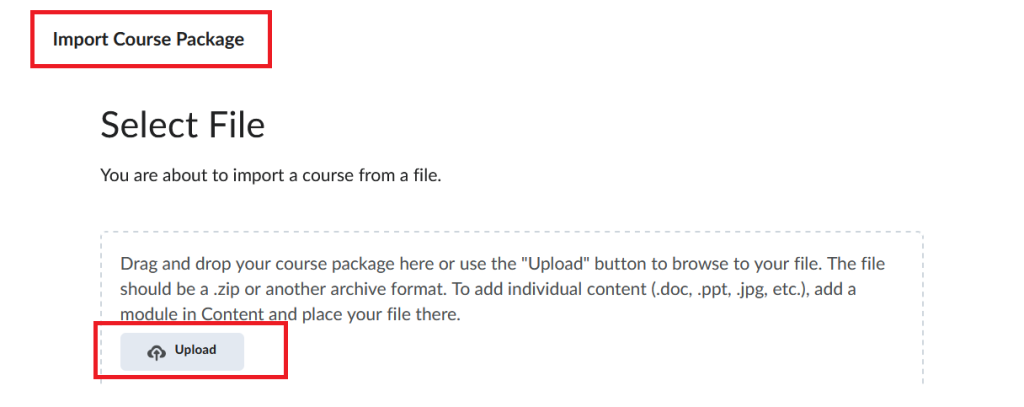
- Locate and select the setup kit file that you downloaded earlier to your computer. Click Open. Alternatively, you can drag and drop the course file in this window.
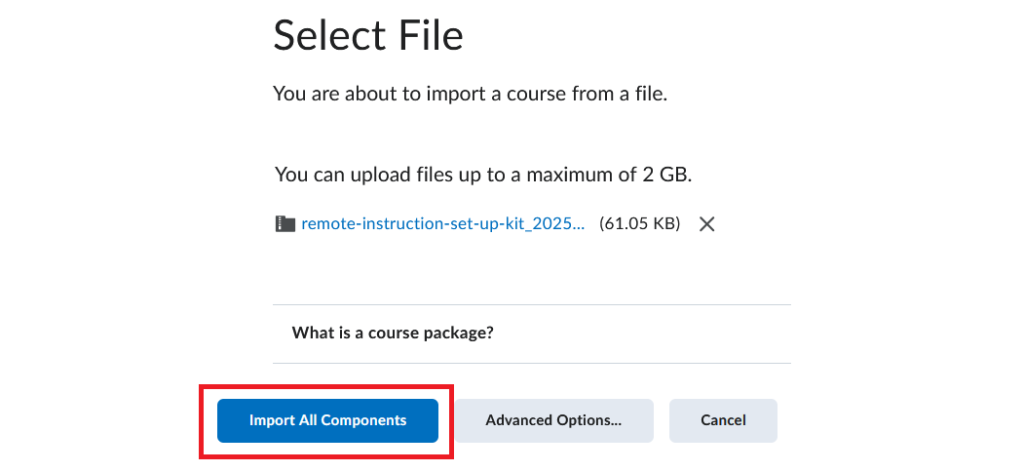
- Finally, select Import All Components.
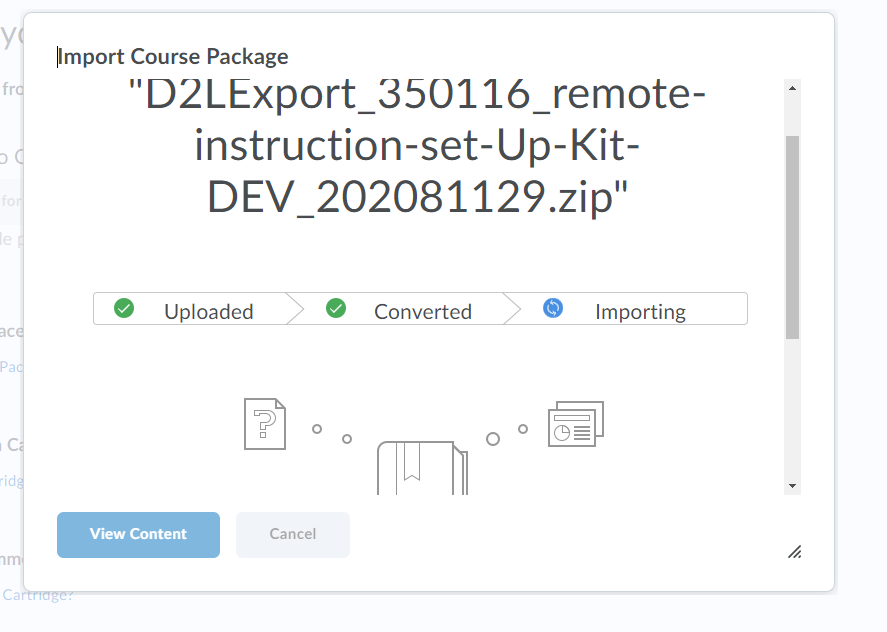
- You should see a progress window while the kit is being imported. When the process is finished, click View Content.
Step 3: Customize the Setup Kit
Once you have installed the setup kit in your Brightspace course, go to Course Content where you will find the following modules:
- Site Instructions for Instructor (hidden from students)
- Getting Started (for students)
- Syllabus module
- Course Schedule, and
- 14 weekly modules
Each of these modules contains several content pages. You can customize both the modules and pages to match your own course organization.
Renaming a module
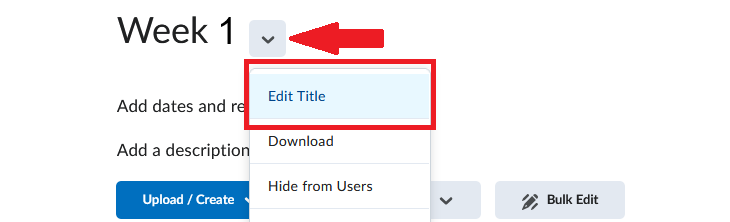
If your course has a different organization than the weekly setup provided in the kit, you can rename the modules, e.g. from Week 1 to Module 1. To do so, click the downward arrow next to the module title and select Edit Title from the dropdown menu.
Deleting a module
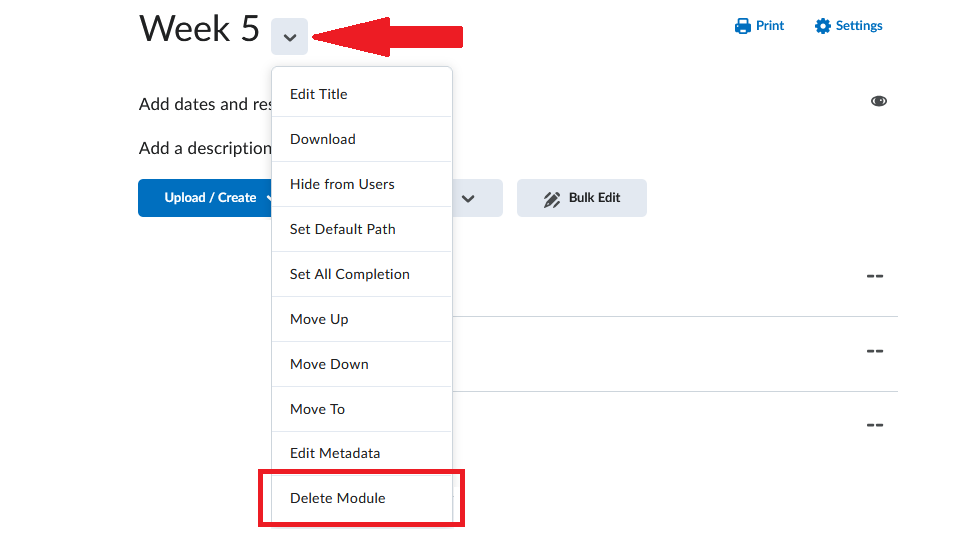
If you do not need all the modules provided in the setup kit, you can delete them. To do so, click the downward arrow next to the module title and select Delete Module from the dropdown menu.
Modifying a page
To modify a page from the kit:
- Go to the module where the page is located.
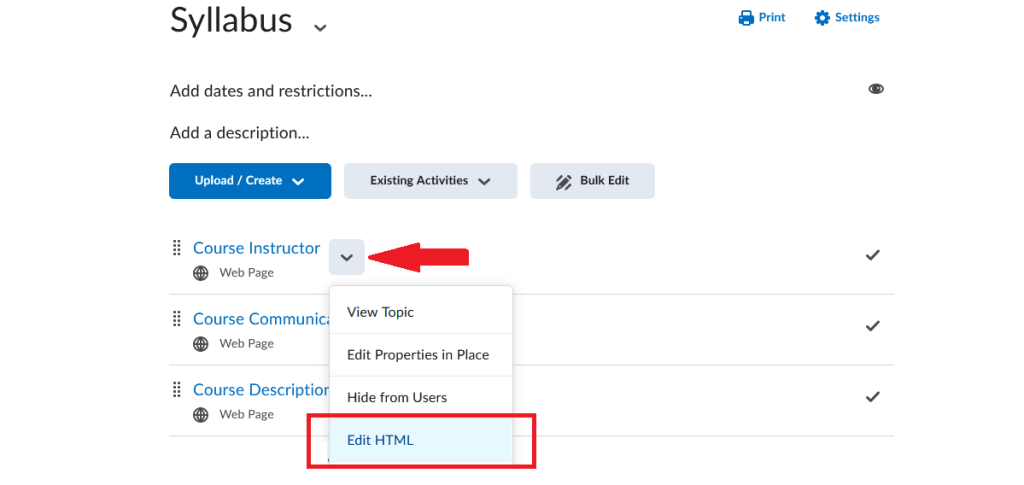
- Click the downward arrow next to the page title.
- Select Edit HTML from the dropdown menu.
Creating a new page
To create a new content page, the easiest way is to use an existing page from the kit as a template.
- Go to the module where you want to create a new page.
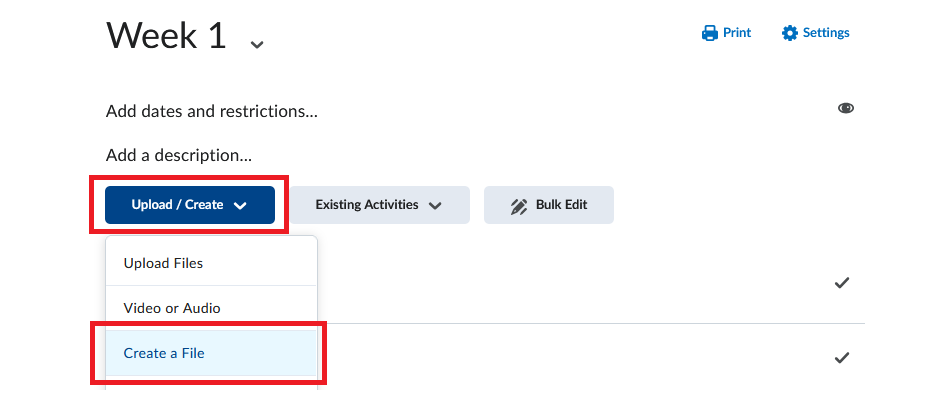
- Click Upload / Create and select Create a File from the dropdown menu.
- Click Browse for a Template.
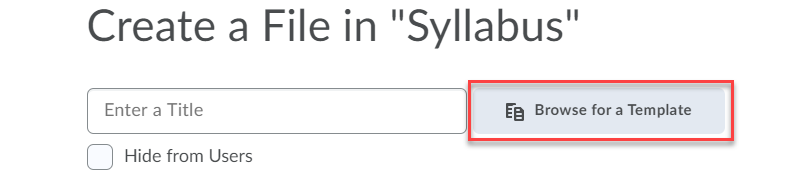
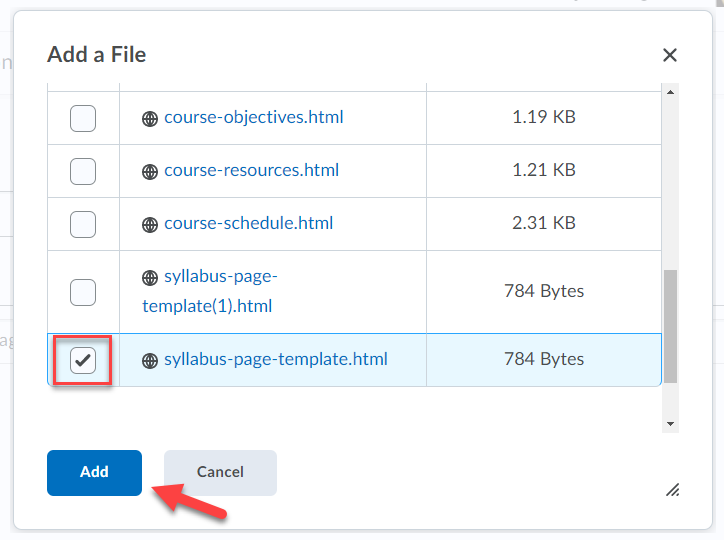
- In the Add a File window, scroll down and click on the Syllabus folder. The syllabus folder contains all the pages currently linked in the Syllabus section of the table of contents. It also includes a blank html page that you can use as a template. Select the syllabus-page-template.html and click Add.
- Enter a title for your page. Click Save and Close.
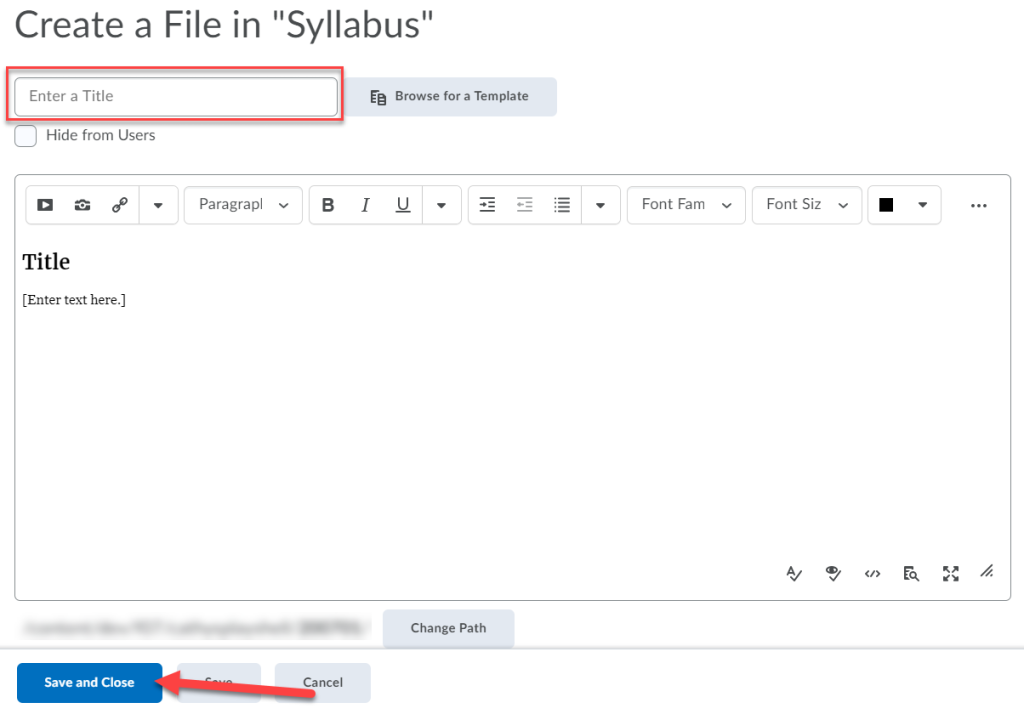
Note: You can choose to use any page as a temple. Entering a new title will name the page according to the title when saved.
Note
For additional information on how to modify the course structure and content provided in the setup kit, please visit our resources on using the Content tool in Brightspace.
Video Instructions
CITL has created a series of instructional videos on importing and customizing the Brightspace Course Setup Kit. To view these videos, please visit the Course Setup Kit playlist on CITL’s YouTube channel.