Copying Between Courses
Brightspace provides the option to copy course components (e.g. specific content, assessments, discussion topics) from one course site to another. Copying course components allows instructors to reuse materials from a previous course offering or from a master course, helping them set up a new course quickly.
Note
In order to copy between courses, you need instructor access to both course sites – the one you are copying from and the one you are copying to.
Instructors can copy either an entire course or only select components. The following components can be copied:
- Content (modules and topics)
- Assignments
- Quizzes
- Discussions
- Grade items
- Announcements
- Checklists
- Release conditions
- Intelligent agents and other tools
Note
Student data or any work submitted by students (e.g. assignments, discussions posts) are not copied.
Instructions
The process of copying from one course to another always begins in the course site you want to copy to.
- In Brightspace, go to the course you want to populate.
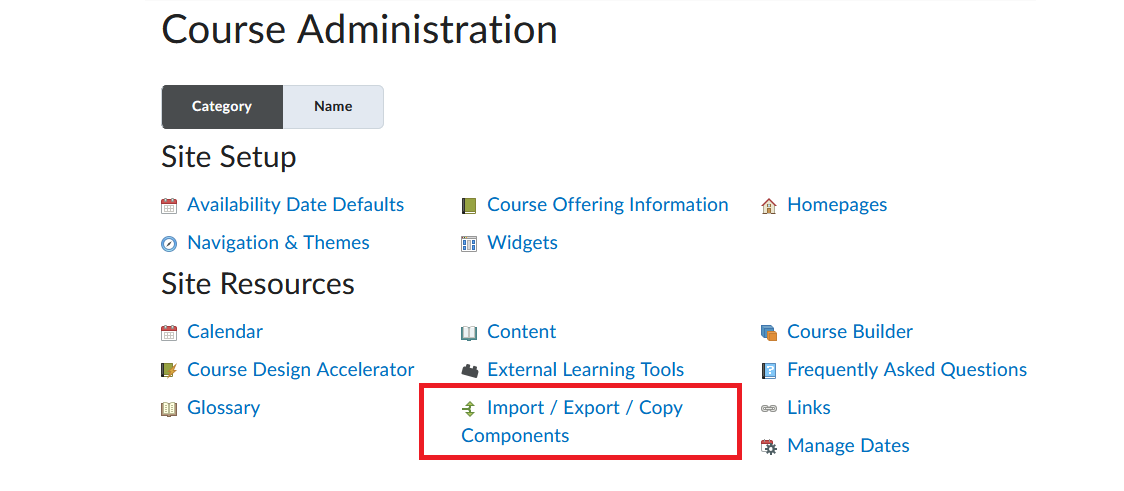
- In the course navbar, go to Course Admin.

- Select Import/Export/Copy Components from the available options.
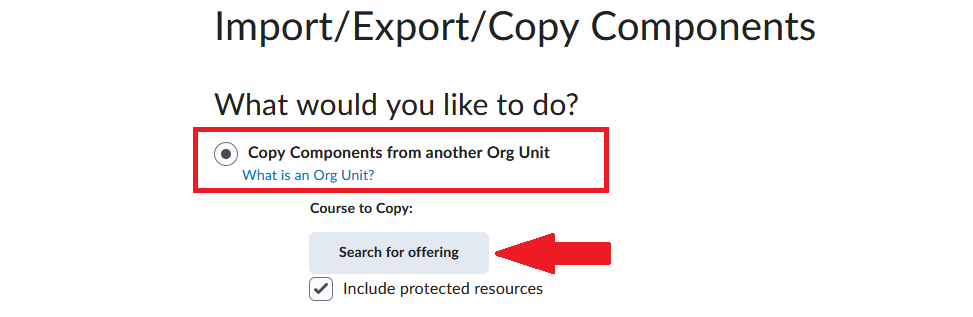
- Select Copy Components from another Org Unit and click Search for offering.
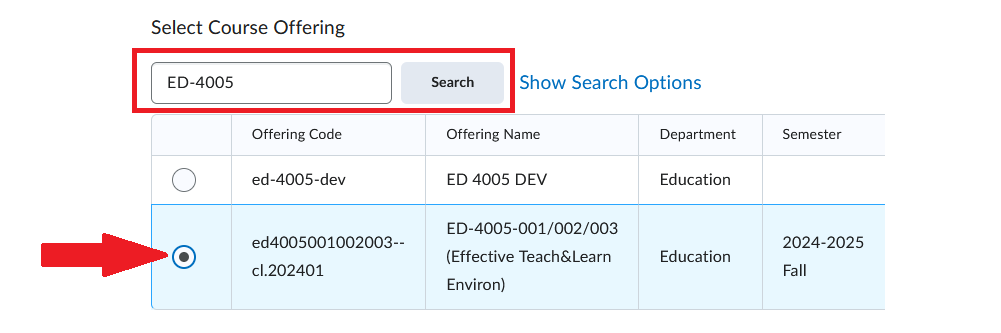
- A new window will open. In the search field, type the name, number, or code of the course you want to copy from, then click Search. Select the correct offering from the list of options.
- The pop-up window will now close and the course you selected will appear as ready to be copied.

- At the bottom of the page, two options will appear:
- Copy All Components – select if you want to copy the entire course
- Select Components – if you want to copy only specific items

- Click Continue and finish the process.
Video Instructions
The following video outlines the process of copying course components from one course to another.
Import/Export/Copy Components – Copy Components