Personal Settings
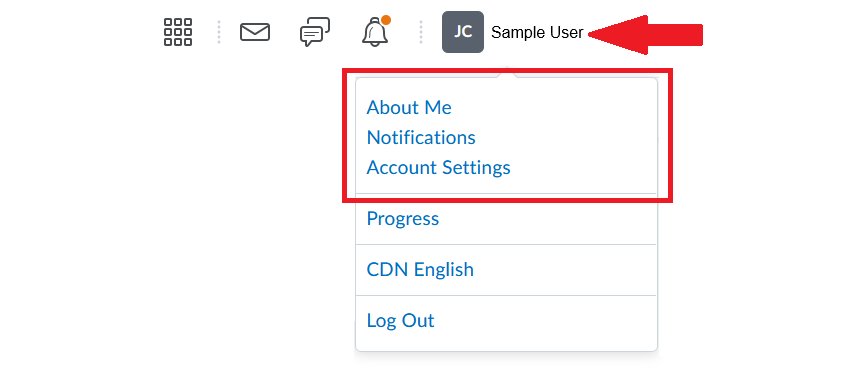
Brightspace offers a range of settings that instructors can modify according to personal preferences. The following settings can be customized:
- Profile – Add a photo and basic information (affiliations, favourite books, etc.) to help students learn a little more about yourself.
- Notifications – Control how and when you receive updates (e.g., announcements, discussions, due dates) via email. See below for details.
- Account Settings – Adjust personal preferences such as language, time zone, display options, and accessibility features (e.g., font size)
- Contact Methods – Update your email or mobile settings for course-related communications.
- Customization Options – Set preferences for the display format of your discussions, Brightspace email, and other tools.
Note
These Brightspace settings apply to all courses. They cannot be limited to a specific course only.
To customize your Brightspace settings, follow the steps below:
- Log in to Brightspace.
- Go to the minibar at the top of the page and click your user name.
- Select the option you wish to customize.
Customizing Notifications
Notifications are a great way to keep up with course activity, as well as receive any university alerts that may be posted in the Brightspace Announcements widget. It is recommended that you turn on these notifications in Brightspace and customize the settings to meet your preferences. You can customize when and how often you get notices, along with the how to receive them. These alerts can be sent directly to your email or to your mobile device.
To customize your notifications:
- Log in to Brightspace.
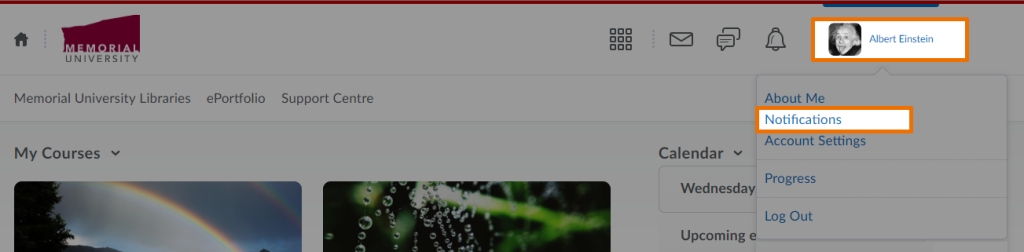
- Click on your user name in the minibar (top right of the page) and select Notifications from the menu.
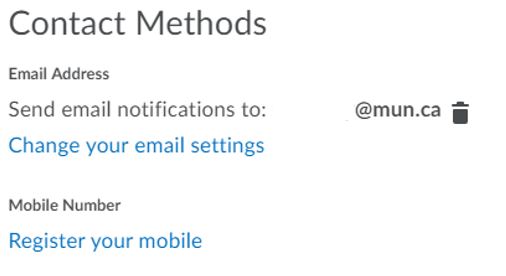
- Under Contact Methods, you will see your system email (@mun.ca). It is recommended that you use this address to receive notifications; however, if you wish to provide a custom email address, you can do so by clicking ‘Change your email settings’.
- In this same section, you can also provide a mobile number to receive notices via text message. Please note: Depending on your phone/data plan, receiving these notices may result in charges.
- You can opt to have a Summary of Activity emailed to you on a daily or weekly basis (or never).
- You can also choose to receive Instant Notifications on course activity (e. g., when discussion posts are made, when a quiz is available, when an announcement is available, etc.). Simply select the activity about which you want to be notified, and the method of delivery for each.
- You can choose to receive notices from future courses (this option may be useful if you are working with a colleague and want to know when new content is added to the site).
- You can also opt to not receive notifications from certain courses by clicking ‘Manage my course exclusions’ at the bottom of the page.
Video Instructions
Managing Notifications
Activity Feed – Customize Notifications
CITL also has also prepared a student guide to managing personal profiles and notifications in Brightspace. If you wish to share it with your students, the guide is available on this student resources page.