Lecture Capture
Multiple classrooms at Memorial are equipped with Lecture Capture—a technology designed to record lectures as they happen in the classroom. Lecture Capture records a small video image of the instructor, the instructor’s voice, and all information projected through the data projector. Links to recordings created using Lecture Capture are automatically uploaded to your Brightspace course site.
Using Lecture Capture
Classrooms equipped with Lecture Capture
If you wish to avail of Lecture Capture for your course, you must be assigned to teach in a room that is equipped with the technology. If the classroom assigned to you does not have Lecture Capture, you can contact your academic unit and request to be reassigned.
Below is a list of Lecture Capture enabled rooms.
St. John’s Campus
- A-1043
- A-1046
- BN-1009
- BN-2028
- BN-3007
- BN-4031
- C-2004
- ED-1014
- ED-1020
- ED-2018B
- EN-2006
- EN-2040
- EN-2043
- EN-2048
- EN-3076
- EN-4035
- IIC-2001
- J-2008
- J-3004
- J-3008
- PE-2001
- SN-2109
- HSC-2956
Grenfell Campus
- AS-2026
- WHM-340
- AS-325
- AS-378
Instructor obligations when using Lecture Capture
- You must notify your students that you are planning to record a lecture/lectures in your course. We ask that you include a notice to that effect in your course syllabus and/or in the Announcements section of your Brightspace course site. Here is a sample message you can post:
Note
All classes for this course, unless otherwise notified, will be recorded. Comments and questions by those present in the class may be captured in the audio of the recording. Additionally, student presentations and participation may be captured on video. Questions or concerns about the use of Lecture Capture in this course should be directed to your instructor.
For your convenience CITL has prepared a sample PowerPoint slide with this notice, which you can download and use in your class presentations if you wish.
- If you schedule a Lecture Capture recording on a date when students or guest speakers are presenting, you must inform them that the presentation is being recorded.
Scheduling recordings
If you are assigned to teach in a room equipped with Lecture Capture, you can manage your recording schedule directly within Brightspace. Before doing so, you should do the following:
- Confirm your room allocation. The scheduling of your class recordings is directly linked to a particular room, so any changes will result in recordings not being uploaded properly.
- Determine if your course sites need to be combined. If you are teaching multiple sections of the same course, this will need to be done in advance; if not, there will be challenges with all students being able to access the recordings.
- Make sure all instructors who are teaching within that course/section are aware the lectures will be recorded. With the scheduling tool, you can choose which lectures are recorded during the semester, so only the teaching time of those who agreed to the use of Lecture Capture should be scheduled.
Once you have considered these three things, you are ready to schedule your class recordings. Please follow the steps outlined below.
Step 1: Opt in
- Log in to Brightspace.
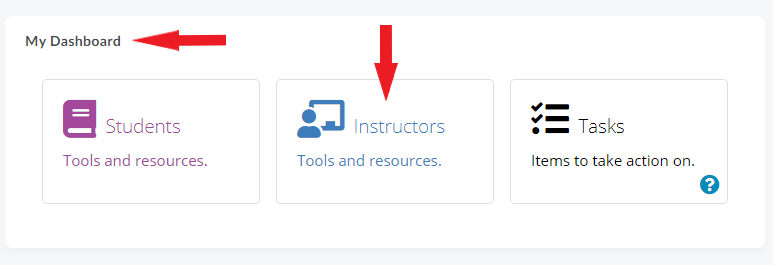
- On the homepage, click on Instructors tile in the My Dashboard widget.
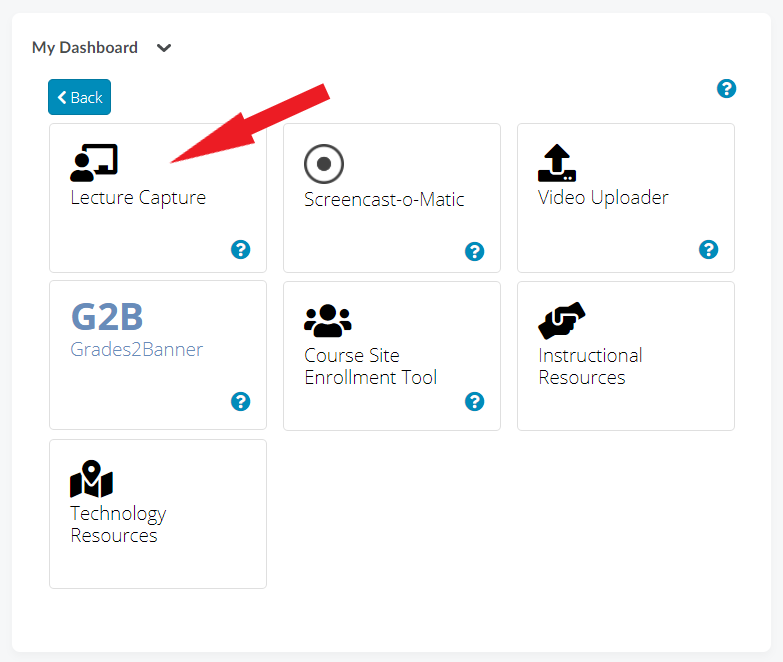
- Select Lecture Capture and follow the directions to begin the scheduling process. (Note: If you cannot see the Lecture Capture option, you were most likely assigned a classroom not equipped with the technology.)
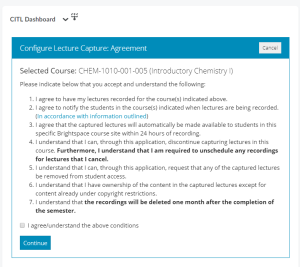
- You must accept the terms of use agreement before scheduling your recordings.
Step 2: Schedule your recordings
By default, all class times listed in Banner are available for recording.
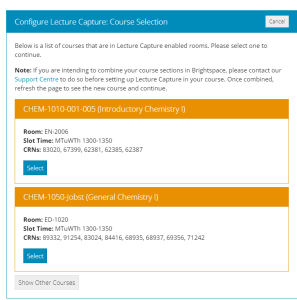
- Click on the course for which you wish to schedule Lecture Capture recordings.
- Review the class schedule and deselect any dates that you do not want recorded (class exams, cancellations, reading week, etc.).
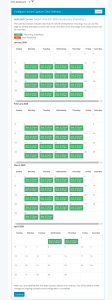
- The selected recordings will automatically be published to the Brightspace course site.
Note
You can review the schedule and make changes at any time in Brightspace by going to My Dashboard > Instructors > Lecture Capture. These changes will be implemented within 10 minutes of making them in the widget.
Managing scheduled sessions
Once you have opted in to use the service and scheduled your recordings, you will have access to the Lecture Capture Session Manager tool where you can:
- Cancel upcoming scheduled recordings.
- Schedule an upcoming recording that was either cancelled or not selected during the setup.
- Request the deletion of an already published recording.
- Request a special recording outside your regular scheduled class time (e.g., optional tutorials).
- Modify the title of the recording that is displayed to your students.
- Modify the description of the recording that is displayed to your students.
Step 1: Access the Session Manager
- Log in to Brightspace.
- On the homepage, click on the Instructors tile in My Dashboard widget.
- Select Lecture Capture.
- Select the course you wish to manage.
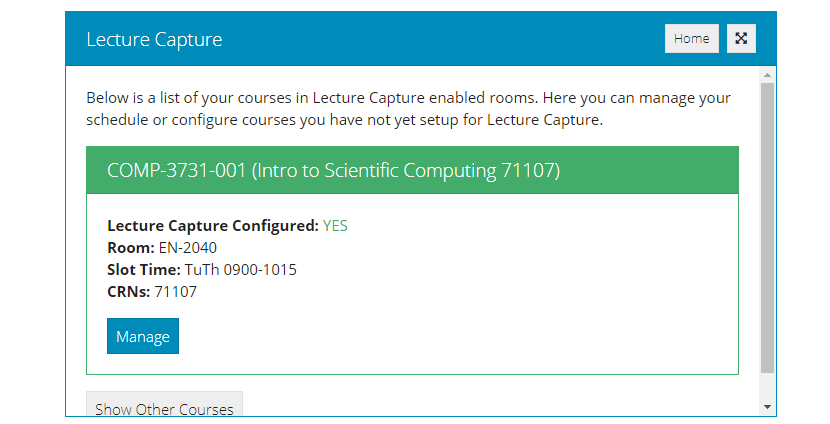
Step 2: Manage Your Sessions
The session manager tool is divided into three main sections.
Section 1
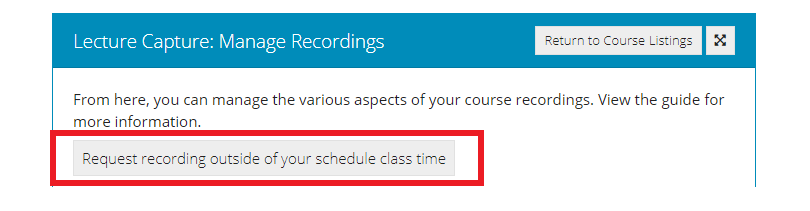
The first section is a form for requesting a recording outside your schedule class time. This form asks you to provide a Date, Start/End Times, the room and request details. This feature may be useful if you would like to record an optional evening tutorial and have it published for all students in your course.
Note
Completing this request form does not actually schedule the recording. A CITL staff member will still need to set up the recording. You will be provided with a ticket number and most requests are processed within 48 hours. Please keep this in mind when requesting a special recording.
Note
Completing this form does not schedule access to this room. You must reach out to the appropriate authority to reserve this physical space.
Section 2
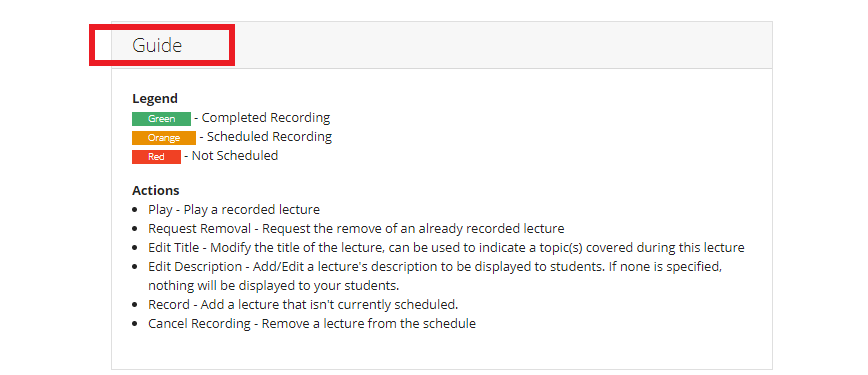
The second section is a guide explaining what the various colors represent as well as the actions you are able to take.
Section 3
The final section contains your recordings.
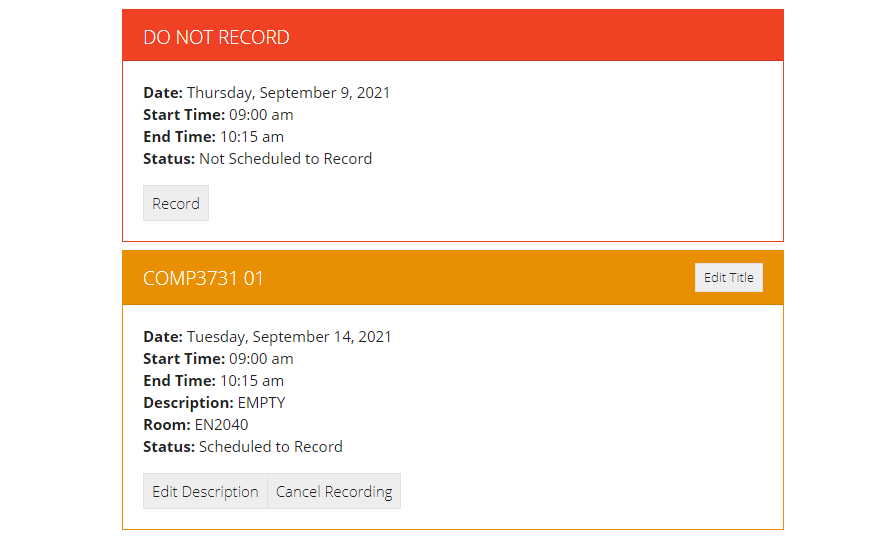
Your recordings may appear in three different formats.
- Future Recordings (Orange) – This is a scheduled upcoming recordings. You can still cancel the recording as well as update the title/description displayed to your students.
- Recorded Sessions (Green) – The recording has already happened and has been published in Brightspace. You can request to have the recording deleted and/or update the title/description displayed to your students.
- DO NOT RECORD (Red) – You cannot scheduled this class time to be recorded.
Lecture Capture for special events
If you would like to use Lecture Capture for a special event or program without a regularly scheduled class time in Banner, you will not be able to schedule a recording through Brightspace. Instead, please reach out to the CITL Support Centre to request a recording. Here is the information you should include in your request:
- The room you will be recording in (the room must be equipped with Lecture Capture).
- The date, start time, and end time of your recording.
- The event name.
You will be asked to accept the recording agreement below.
Lecture Capture Agreement
In order to use CITL’s Lecture Capture hardware, all users must agree to the following agreement:
- I agree to have the session indicated above recorded by the CITL Lecture Capture technology.
- I agree to notify the participants in the session that the session is being recorded (see sample PowerPoint slide).
- I agree to let participants know the purpose of the recording and how it will be used.
- It is my responsibility to get permission to record all individuals who can be identified in the recording and I agree to do so.
- I understand that I have ownership of the content in the captured recording except for content already under copyright restrictions or owned by other presenters.
- I understand that the recording provided to me after the event is complete and it is my responsibility to properly protect the recording.
Timelines
- Setup Time: CITL will require 3 business days’ notice to set up the Lecture Capture system to record your session. Please consider this requirement when making your request to the CITL Support Centre.
- Processing Time: Once the event is recorded, the final video will be delivered to you within 3 business days.
Tips to ensure a successful recording
- Repeat any questions asked by the audience or other persons who are away from the microphone.
- Stay within the camera’s field of vision (for example, stay behind the instructor station).
- Start the event on time
- End the event on time
- Ensure the microphone(s) is turned on and being used by all presenters.
Important Considerations
- Lecture Capture creates a live recording of the events in a specific course. A recording created for one section/course should not be used in other sections/courses as the context may be lost for the students who were not in the course in which the recording was made.
- Recordings are published to Brightspace ONE DAY AFTER they are created. We advise that instructors inform students of this delay through the course syllabus or through communication tools in Brightspace (e.g. an announcement).
- Recordings are deleted one month after the course has ended.
Video Instructions
The video below offers a short demonstration of the Lecture Capture system. You can also refer to these Lecture Capture Tips.
Need Help?
Any questions about your recordings or scheduling can be directed to CITL’s Support Centre.