Linney: Memorial’s Learning Object Repository
Linney is a learning object repository (LOR) supported by Memorial University. Linney contains a large selection of images, audio, video, and interactive media objects that have been developed for use in other courses. Instructors can use these learning objects in their own courses to supplement already existing content or a source of ideas for creating new content.
Locating Objects in Linney
1. Using the Search Tool
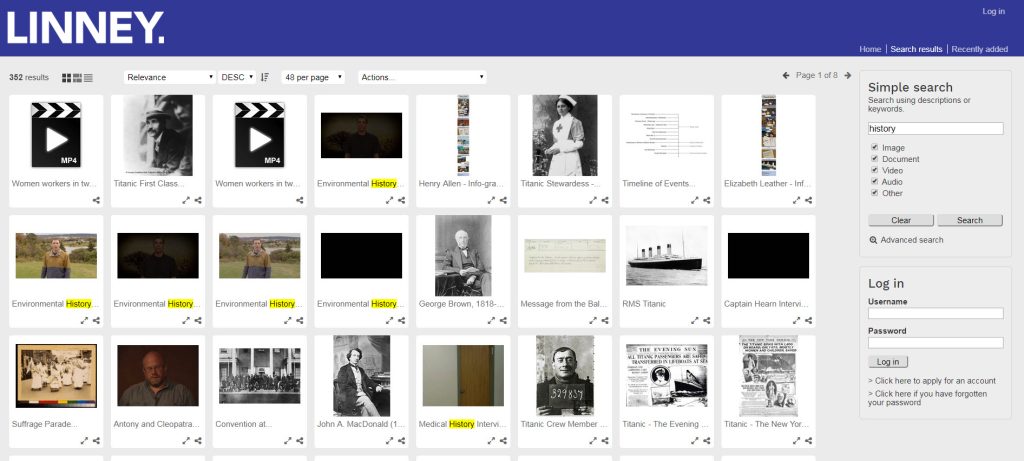
One way to find relevant objects in Linney is by using the search tool and conducting a keyword search. Selecting the checkbox for the object type will refine search results.
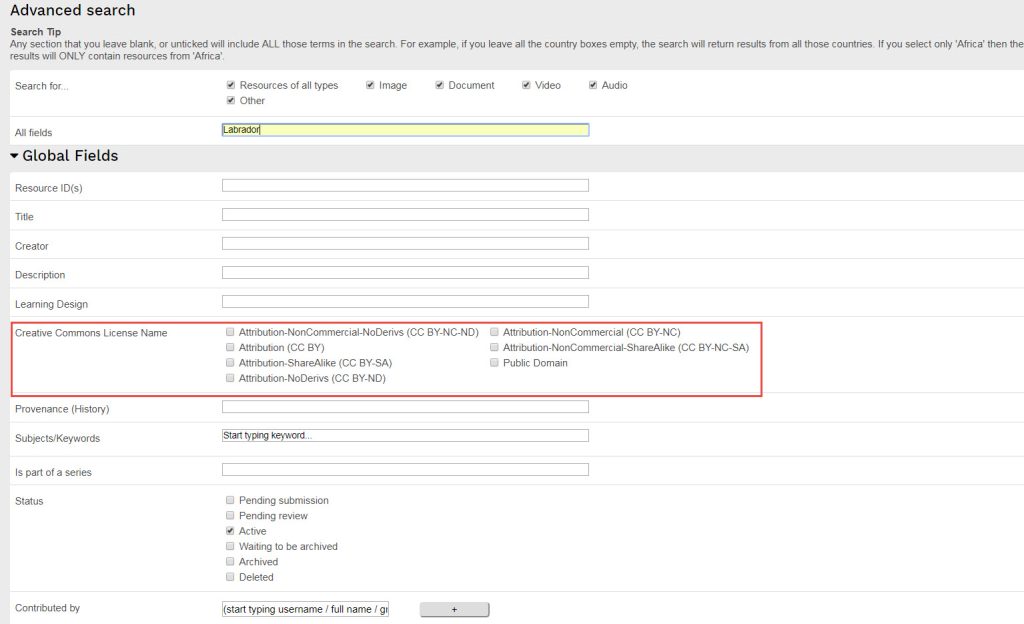
The Advanced search function can also be used to refine the search even more by allying one or more filters. In the example below, Labrador is the key term, but the search is limited to only include results with a specific kind of creative commons license.
2. Browsing Featured Collections
Featured Collections in Linney highlight objects that may be relevant during a particular month. Browsing through a featured collection is a great way to find new learning objects that you can use, and will give you a sense of the variety of objects in Linney. Every month, one or more topics are featured.
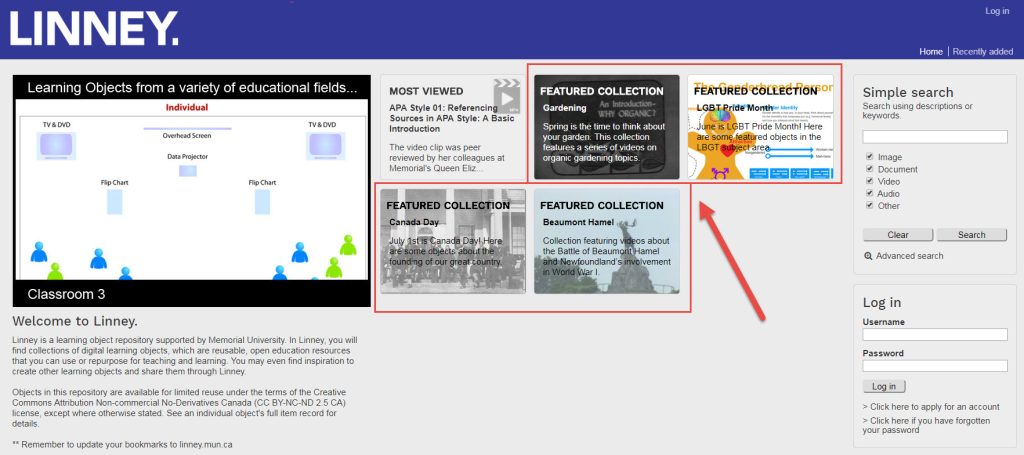
The video below includes more information about the Featured Collections.
Using Objects from Linney in Brightspace
Finding some really useful learning objects in Linney is great, but now we want to actually use them in our courses. You can easily use objects found in Linney in your course shell in Brightspace (D2L). Let’s look at how you can do that.
Linking or Embedding from Linney
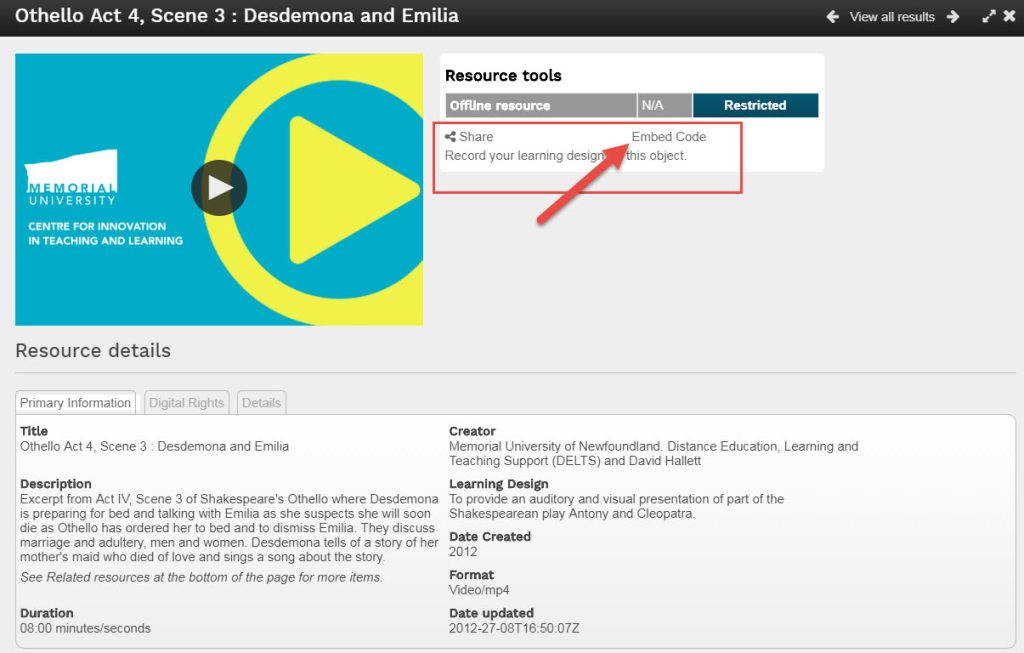
1. Once you have found an object you want to use, click Embed Code. Moving objects (like videos) will have an embed code; all other objects will have a hyperlink or can be downloaded.
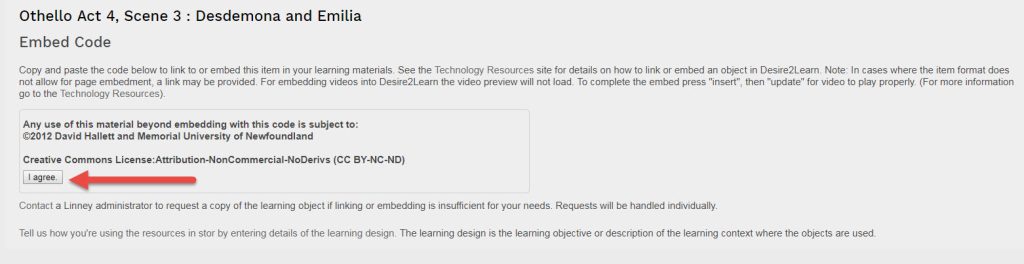
2. Before you are shown the embed/link code you will be reminded of the Digital Rights for the object. Make sure you are following these rights and then you can agree to them to view the code.
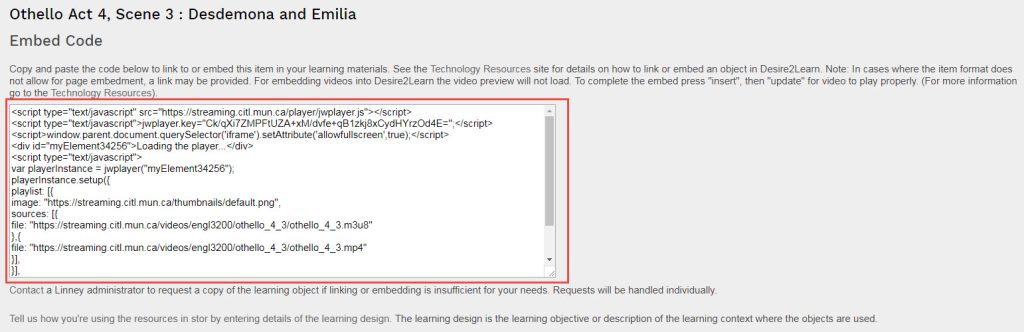
3. Copy the entire embed code.
Embedding Objects in Brightspace
Now that you have an object’s embed code, you can easily put it into a content page in your course site in Brightspace:
- Navigate to the page where you want the object to appear.
- Click Insert Stuff from the toolbar.

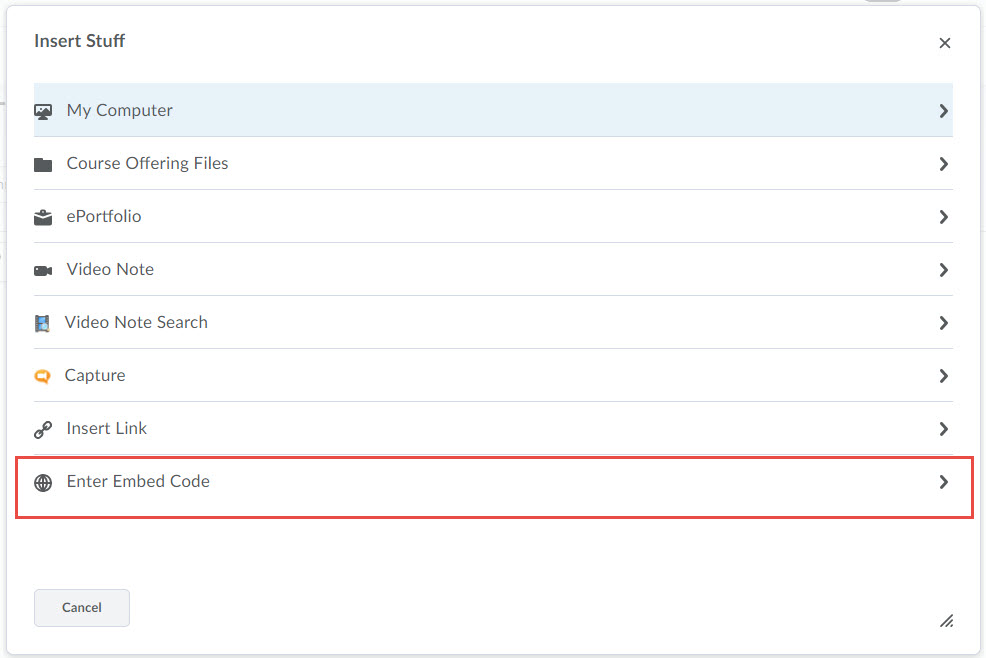
- From the ‘Insert Stuff’ page, select Enter Embed Code, and paste your embed code from Linney in the box indicated. Click Next.
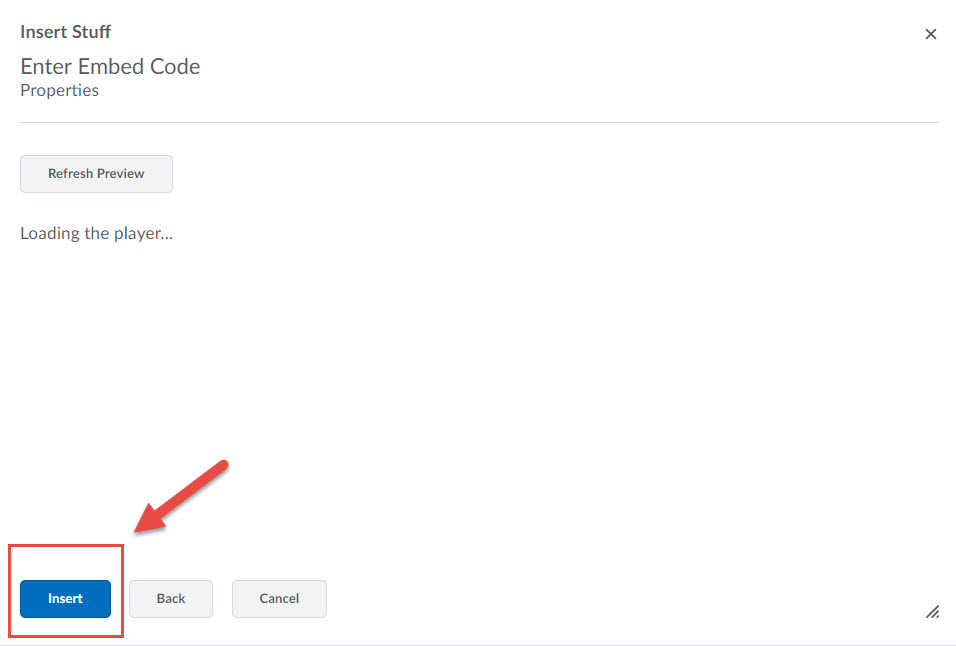
- On the next screen, Brightspace will try to show a preview of your object. Note that videos (mp4s) will not actually preview. The player does not properly load during preview right now, but it will load once you insert the embed code. For all other media (images, audio) a preview will show. Go ahead and insert your object’s embed code. It will load when you update your page.
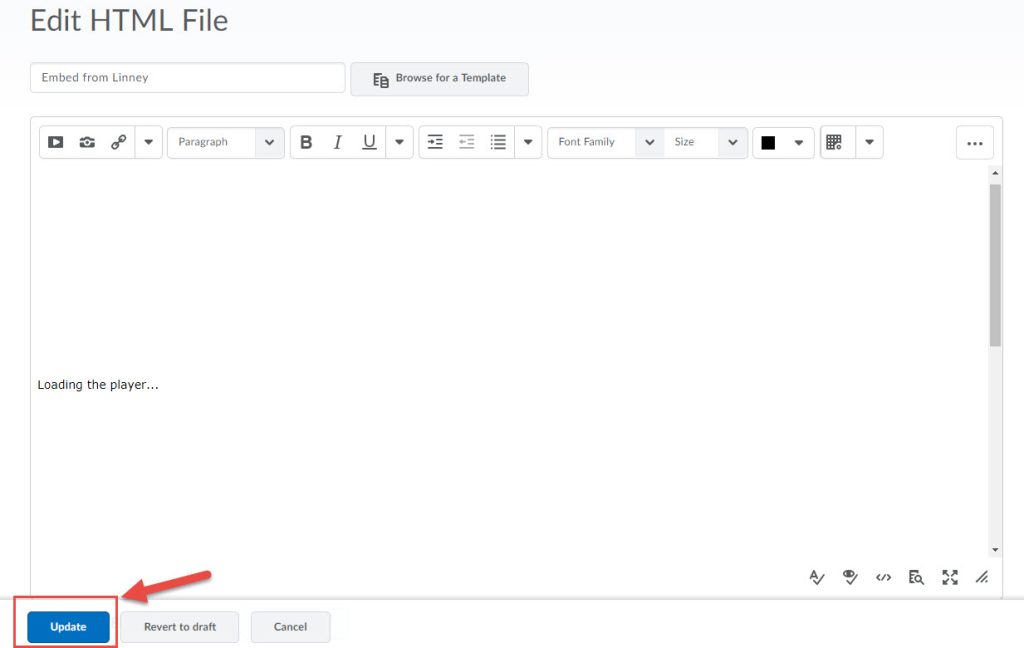
- Click on Update to finalize and publish your page with the embed code.
Contributing to Linney
Linney is a living, growing object repository. If you have a learning object (image, video, audio recording, or an interactive learning object) that may be of benefit to others and you have the right to share, you should consider contributing it to Linney.
- To contribute to Linney, you first need to request an account by filling out and submitting this form.
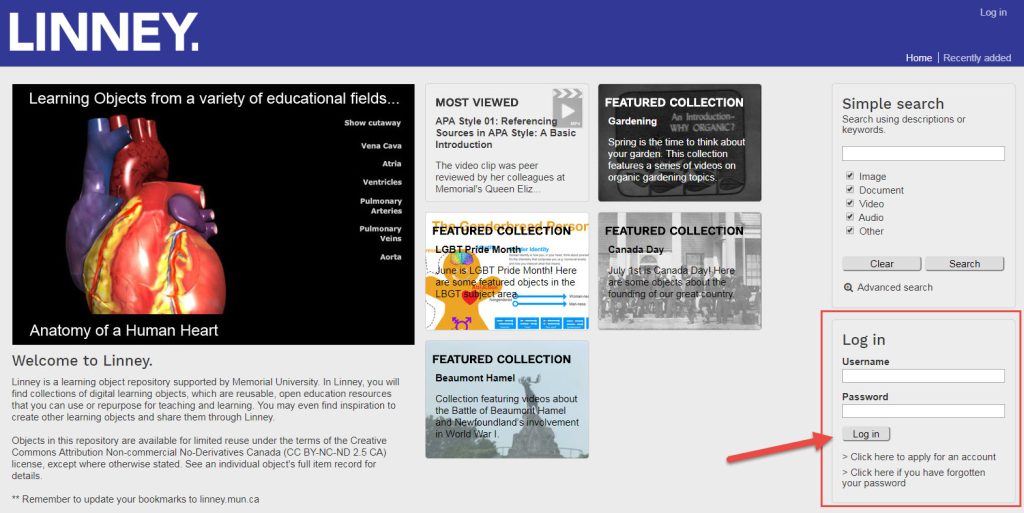
- Once your account has been created, visit Linney and log in to the system.
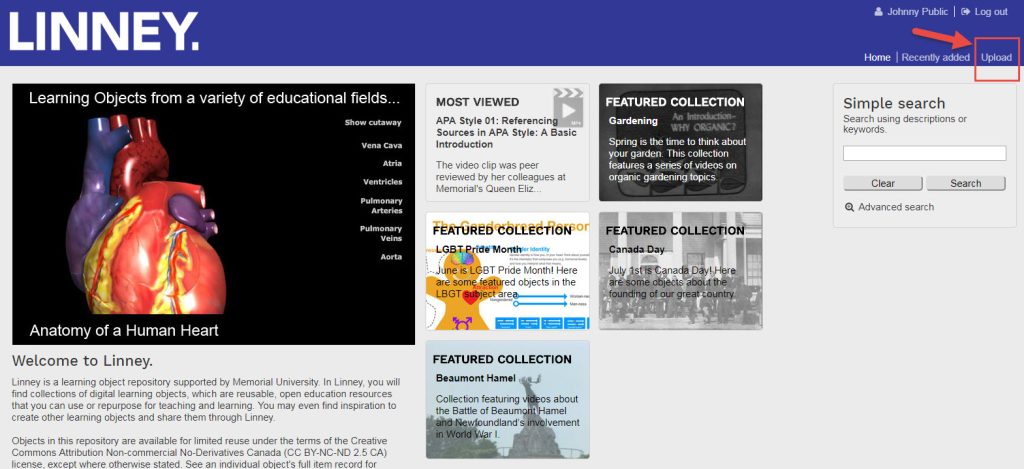
- Select Upload in the top right corner of the page.
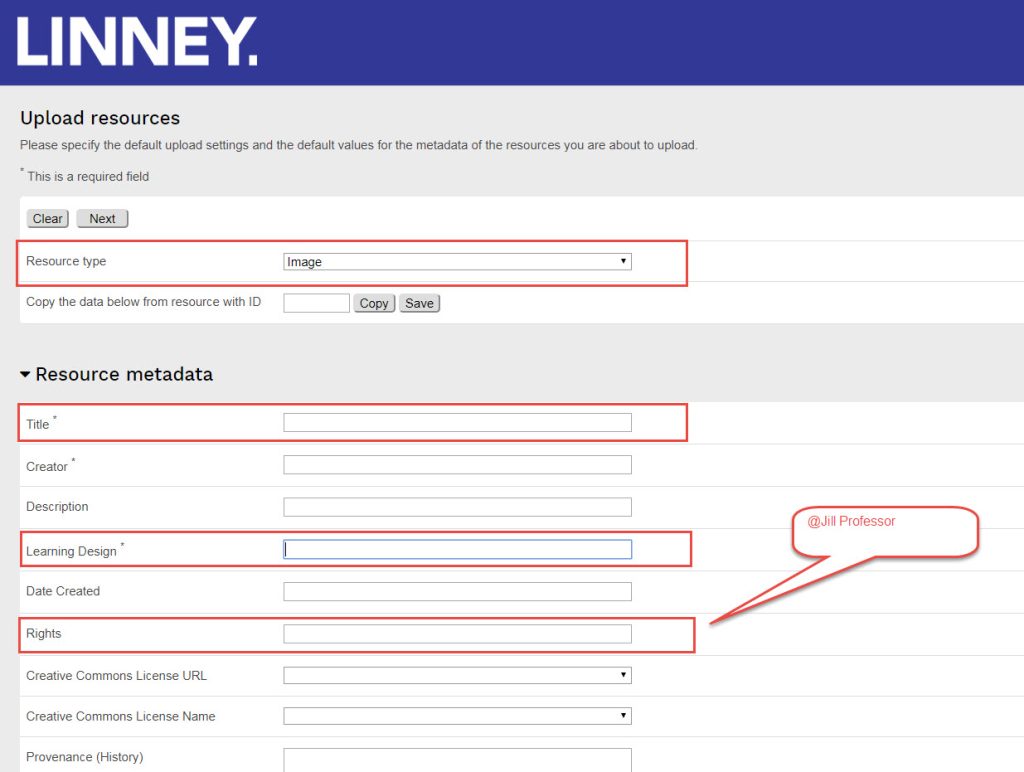
- Enter all relevant information for your object:
- Resource type (Image, Document, Audio, Video or Other)
- Title
- Creator (who created the object)
- the Learning Design
All other information is optional, but we recommend providing as much information as possible.
You will also need to provide the copyright information as well as a Creative Commons license. If it is not included, we will contact you for more information. You should not contribute a resource that you do not own or have copyright permission to do so. By adding a Creative Commons license, you allow users to use your object according to your terms without having to contact you each time the object is to be used. You can learn more about Creative Commons Licensing under https://linney.mun.ca/?r=36688.
- Select either Create new collection or My Collection to add your object.
- Click Next to start uploading your file.
- Click Add Files and locate the file you wish to add on your device.
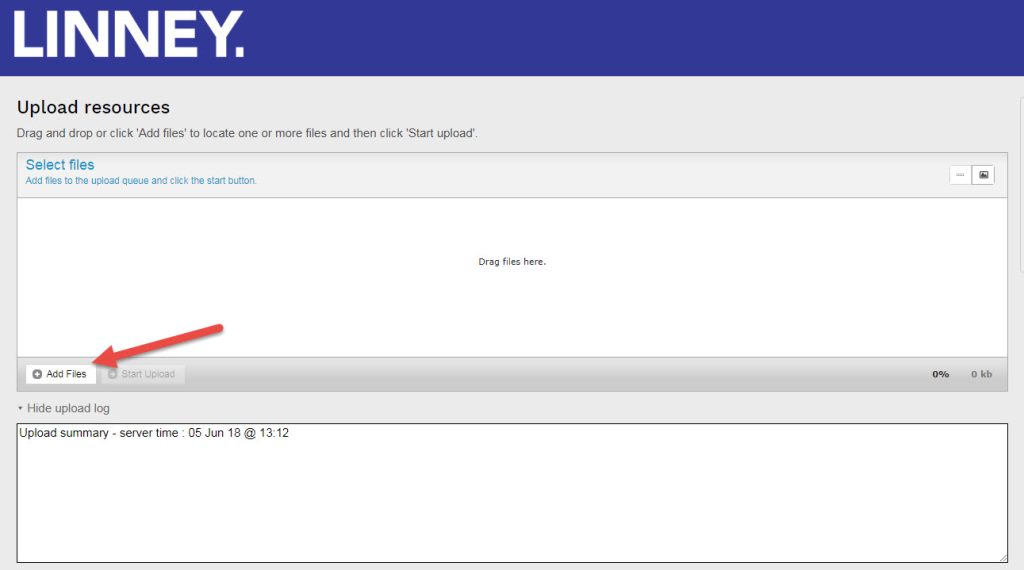
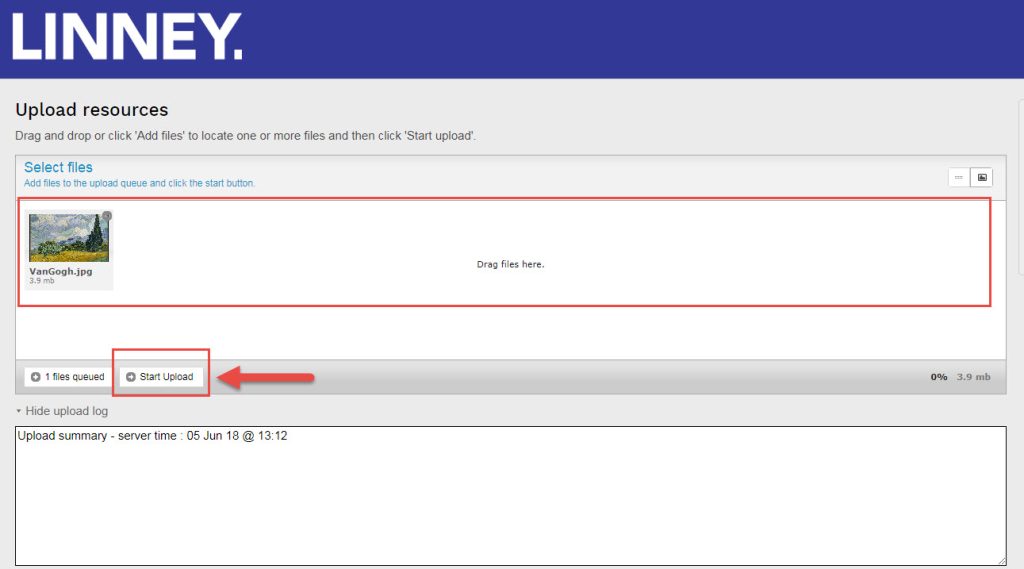
- If you see the name of your file in the Select Files area, click Start Upload.
When your object has been reviewed and made public, you will receive an email – and a big thank you!
Linney FAQs
How can I access Linney?
You can look for objects at: http://linney.mun.ca.
How many learning objects are in Linney?
We currently have about 8800 objects housed in Linney. We are continuously adding more objects from various disciplines.
Can I use anything I find in Linney?
You are free to use anything you find in Linney. How you use it might be guided by an object’s license.
Am I limited to how I use a photo or video that I find?
Some objects have licences or rights that place some restrictions on how they are used, while others come with no limitations at all. You can see the license or rights associated with each object when you look at its metadata. You can also learn all about Creative Commons licensing and how that may impact how you use an object.
If I find an interactive object, can I modify it completely to suit the content for my course?
Some of the objects in Linney can be downloaded and modified completely (depending on license restrictions).
How are objects in Linney licensed?
Objects in Linney are available for limited reuse under the terms of the Canadian Creative Commons Attribution Non-commercial No-Derivatives (CC BY-NC-ND 2.5 CA) license, except where otherwise stated. You can look at the full item record for individual objects for more details.
Video: Linney—Understanding Creative Commons
How can I use objects I find?
Any objects you find can be used in Brightspace or embedded into an html page. Some objects can be used by linking to the object while others can be downloaded.